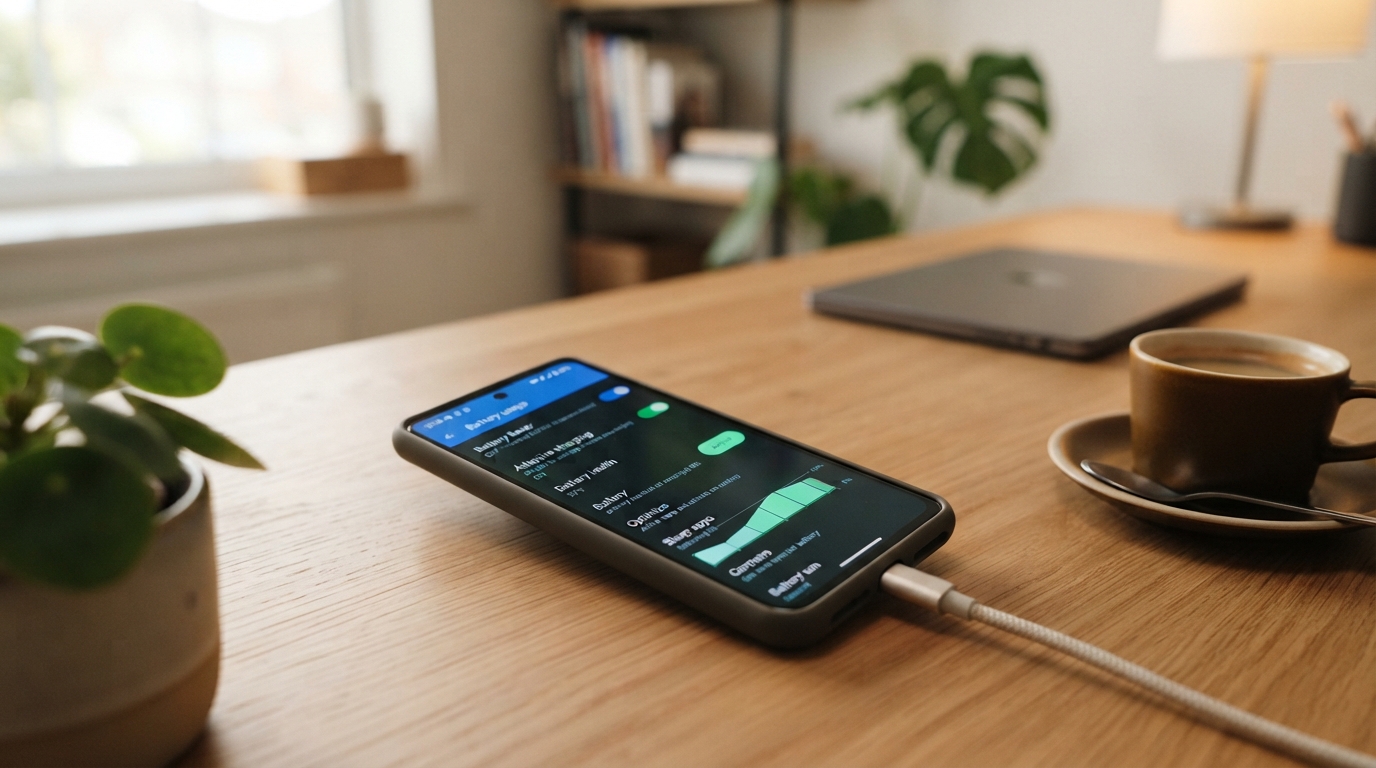
We can improve a phone’s daily runtime with settings and slow long-term wear with better charging and temperature habits. A phone that dies before bedtime can disrupt work, travel, and plans, even when its battery is not ready for replacement.
Battery Health Optimization means choosing practical habits that support both goals. We can change settings to stretch battery life today, then use sensible charging and temperature habits to slow battery lifespan decline over time.
We will focus on changes that work across common phones, not on chasing a perfect percentage. A few model-specific settings can make those habits easier to follow.
Key Takeaways
- Use a charge limit if it covers your typical day.
- Leave adaptive charging and battery protection on.
- Keep the phone away from hot cars and direct sun.
- Lower screen brightness to stretch a charge.
- Check battery use if runtime drops without warning.
What Does Battery Health Measure?
Battery health describes how much capacity remains compared with when the battery was new, not how many hours every charge will last. Maximum capacity is an estimate, and it cannot predict your exact daily runtime.
Battery life is the time a device runs before it needs recharging; battery lifespan is the time until its battery needs replacement. A charge cycle means using battery power equal to 100% of capacity, all at once or across several charges.
Battery health estimates remaining capacity, while battery life measures the time between charges. One percentage cannot predict every day’s runtime.
Battery lifespan depends partly on charge cycles and how the battery was cared for. Lithium-ion batteries chemically age, and temperature history and charging patterns can affect maximum capacity over time.
An iPhone’s displayed capacity can fall below 80%. For covered iPhones, AppleCare battery coverage replaces the battery at no extra charge when capacity drops below 80%; that threshold is a service checkpoint, not a universal failure point.
One reading alone does not diagnose a battery problem. Compare readings over time and consider service when reduced capacity noticeably affects daily use.
Which Charging Settings Should You Use on Each Phone?
For a phone that supports a fixed cap, set the limit to match how often you need a full charge; for a routine that varies, use adaptive charging. Battery optimization settings usually work best when left on, since they can reduce time spent at a full charge.
Choose a fixed charge limit when you can spare some daily runtime, or use adaptive charging when your unplug time is steady. The options differ across iPhone, Pixel, and Samsung Galaxy devices.
iPhone charge limits and optimized charging
As of December 2025, iPhone 15 models and later offer charge limits from 80% to 100%, in 5% steps. Below 100%, charging stops within a few percentage points of the selected limit.
When the limit is 100%, Optimized Battery Charging can delay charging past 80% in certain situations. It needs at least 14 days to learn habits and nine charges lasting five hours or more in one location.
With a lower limit, iOS may sometimes charge to 100% to keep its estimates accurate. If the connected phone drops more than 5% after reaching the limit, charging resumes to within a few points of that limit.
On iPhone 14 models and earlier, turn on Optimized Battery Charging in Settings > Battery > Battery Health & Charging. Turning off charging optimizations can increase wear and reduce battery lifespan.
Pixel adaptive charging and the 80% limit
Pixel Adaptive Charging learns your habits for about 14 days and may finish shortly before your usual unplug time. Travel or a changed routine can keep it from working as expected.
Pixel 6a and later have a fixed Limit to 80% setting. Pixel devices may fully charge every 10th cycle to keep capacity readings accurate; after 100% appears, leave the phone plugged in for at least 30 minutes.
After setup or a factory reset, optimization can take a few weeks. Google recommends leaving Adaptive Battery and Battery Optimization on.
Samsung battery protection modes
One UI 6.1 added Basic, Adaptive, and Maximum battery protection modes. Adaptive learns how you use the phone, while Maximum stops charging at a set level.
On Galaxy phones with One UI 7, Maximum offers 80%, 85%, 90%, or 95% limits. Older One UI versions cap Maximum at 85%.
| Platform | Adjustable charge limit | Charging optimization |
|---|---|---|
| iPhone 15 and later | 80%-100%, 5% steps | Optimized Battery Charging at 100% |
| Pixel 6a and later | 80% limit | Adaptive Charging |
| Galaxy One UI 7 | 80%, 85%, 90%, or 95% | Adaptive protection mode |
If a learned charging feature has not started working yet, allow its stated learning period before assuming it is broken.
What Charging Routine Reduces Wear Without Chasing 80%?
An 80% cap can reduce time spent fully charged, but it is a tradeoff rather than a rule every phone owner must follow. Use the lower limit when it covers your day, and charge fully when longer runtime matters more.
The 20-80% range is a rule of thumb, not a requirement, and no routine can promise 100% maximum capacity. Frequent deep discharges are unnecessary; Pixel users do not need to drain the phone to zero or charge from zero to full to teach it capacity.
Occasional full charging is not a reason to panic. Samsung users can choose among selectable protection modes on One UI 7, including fixed maximum levels.
- Top up before the battery is nearly empty.
- Use a charge limit if it suits your routine.
- Leave smart charging enabled.
- Charge fully when a day’s needs call for it.
How to keep iPhone battery health at 100 has no guaranteed answer, because capacity declines as lithium-ion batteries age. Choose the highest limit that reliably gets through the day without keeping the phone at 100% for long stretches.
How Do Heat and Storage Affect Battery Lifespan?
Keep a phone out of prolonged heat, because high temperatures can permanently reduce the capacity available on later charges. Heat is the main avoidable risk, especially in direct sunlight or a parked car.
Apple lists 62-72°F (16-22°C) as the device comfort zone and warns that exposure above 95°F (35°C) can permanently damage battery capacity. A hot phone may also limit charging automatically.
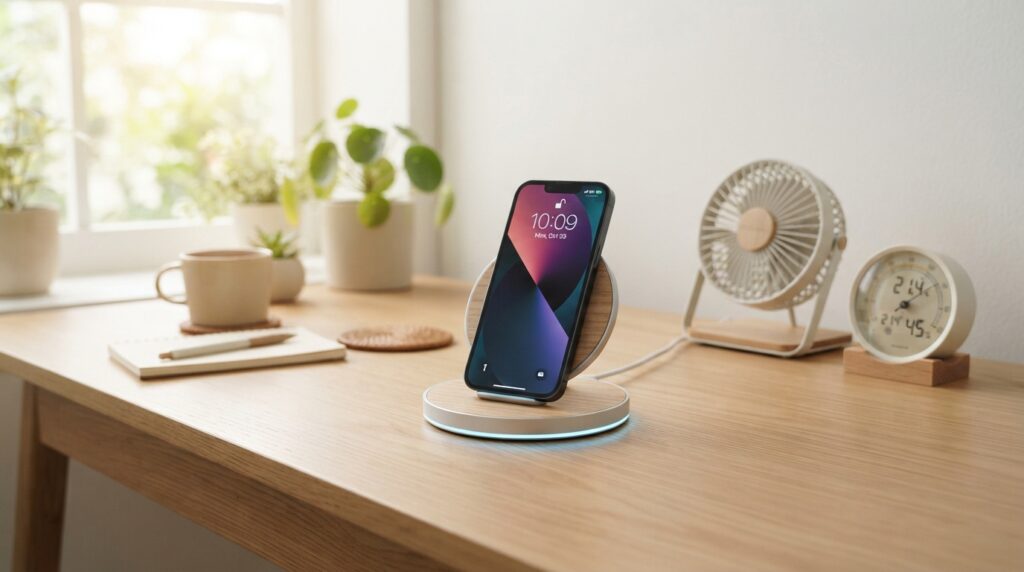
Pixel charging protection may limit charging to about 70%-80% after several hours of continuous charging in high temperatures. Charging a Pixel while hot can make it drain much faster, even when idle, and can damage its battery.
| Situation | Temperature or charge condition | Practical action |
|---|---|---|
| Normal use | 62-72°F (16-22°C) | Keep the phone in a cool place |
| High heat | Above 95°F (35°C) | Move it from sun or a hot car |
| Long-term storage | About 50% charge, below 90°F (32°C) | Power down; recharge to 50% every six months |
Before long-term storage, Apple recommends charging to around 50%, powering down, and keeping the device below 90°F (32°C). If storage lasts more than six months, recharge it to 50% every six months.
If a phone becomes hot while charging, move it to a cooler place and let it cool before continuing.
How Can You Make a Charge Last Through the Day?
Lowering brightness is often the quickest way to make a phone last longer when its display is on for much of the day. Keep the screen comfortable, but avoid using more light than you need.
A dimmer display, shorter screen timeout, and Wi-Fi connection can reduce power use during ordinary phone use. These changes help battery life, but they do not change the battery’s long-term lifespan.
Reduce display and connection power
Set a shorter screen timeout so the display turns off sooner when you set the phone down. When available, Wi-Fi uses less power than a cellular network for data.
Dark mode may save power on OLED screens because black pixels can turn off. The benefit depends on the screen type, so dark mode may not save as much on other displays.
Limit power use when the battery is low
Low Power Mode on iPhone is a temporary battery saver. It lowers display brightness, optimizes performance, and minimizes system animations.
We can turn it on in Settings > Battery when a charger is far away. Some power-saving modes may limit features or performance, so use them when the extra runtime matters.
Four quick adjustments can help us extend battery life through a busy day:
- Lower screen brightness to a comfortable level.
- Shorten the screen timeout.
- Prefer Wi-Fi for data when available.
- Enable a power-saving mode when needed.
Turn on a power-saving mode before the battery becomes critically low if a longer stretch away from a charger is expected.
How Do You Find the Cause of Sudden Battery Drain?
Start with the battery-usage screen, because it can show whether one app or background activity is responsible for the change. Check the recent pattern before changing several settings at once.
Compare app-level battery use with your normal pattern, then address the app or signal issue that stands out. iPhone users can see each app’s share in Settings > Battery, and Android battery-usage screens show apps with high power use.
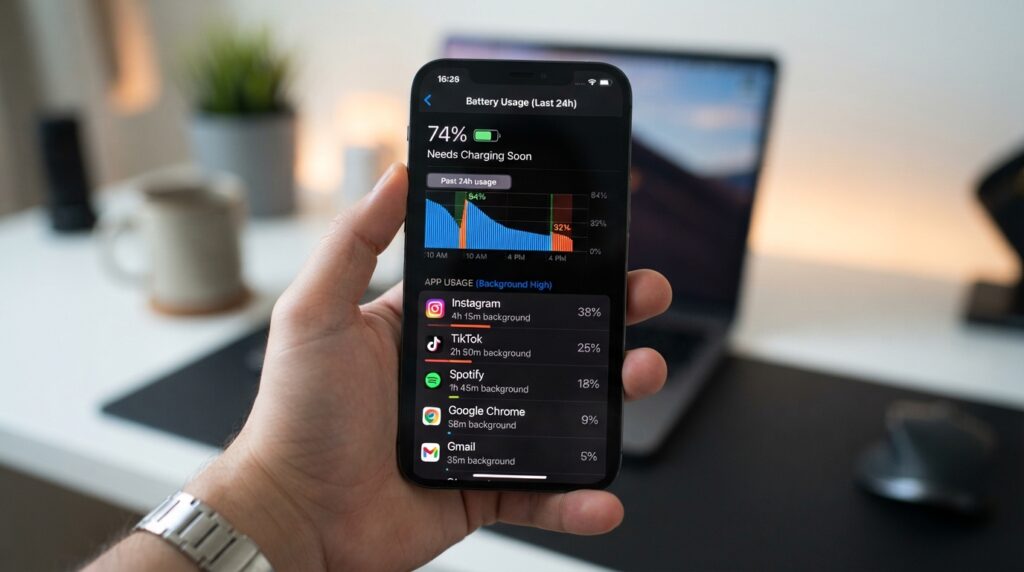
- Review app-level battery use for an app with unusual power use.
- Restrict background activity only for apps that do not need it.
- Install available operating-system and app updates.
- Restart the phone if the drain began suddenly.
Restricting background activity can affect alerts and updates, so change it only for apps that do not need them. For more help with background activity, updates, and restarts, see our Android performance troubleshooting guide.
Poor cellular reception can make a phone use more power while searching for a signal. Airplane mode stops that search, but it also disables calls while enabled.
If one app remains unusually high after an update and restart, restrict its background activity or contact its developer. Seek device support if the problem persists.
Check app use first, then limit background activity only when an app does not need it. Airplane mode saves signal-search power but blocks calls.
Which Charger and Charging Setup Should You Trust?
Use the adapter supplied with your phone or one that meets the phone maker’s specifications, rather than choosing a charger on wattage alone. A good fit matters for steady charging and normal temperatures.
Slow, warm, or intermittent charging can point to a problem with the adapter, cable, outlet, or connection. Google recommends the supplied Pixel adapter, since other chargers may charge slowly, fail to charge, or damage the phone or battery.
Poorly matched or damaged accessories can charge slowly or create excess heat. Check that the cable fits firmly, then try a different outlet to see whether the issue changes.
Look for frayed cable covers, bent connectors, or loose plugs before using an accessory. Stop using a charger or cable that is damaged or makes the phone unusually hot.
Conclusion
A good battery routine is the one that protects the phone without making everyday charging inconvenient. Small changes can add up when we keep using them.
A suitable charge limit, protection from heat, and a few daily power adjustments can reduce avoidable battery wear. We do not need to check every percentage or change every setting to support battery health.
Start with the battery settings already built into the phone. Choose a protection feature that fits your schedule, then keep the phone away from lasting heat.
Check your phone’s battery settings today and choose one change you can keep using.
Conclusion
Small, consistent changes are more useful than worrying over every percentage point. Battery health is not a daily score, and one reading should not drive every charging choice.
A charge limit that fits your routine and less heat can help reduce avoidable wear. We can also check battery usage when daily runtime changes, then adjust only what seems to be causing the problem.
Open your battery settings and make one adjustment that fits your normal day.