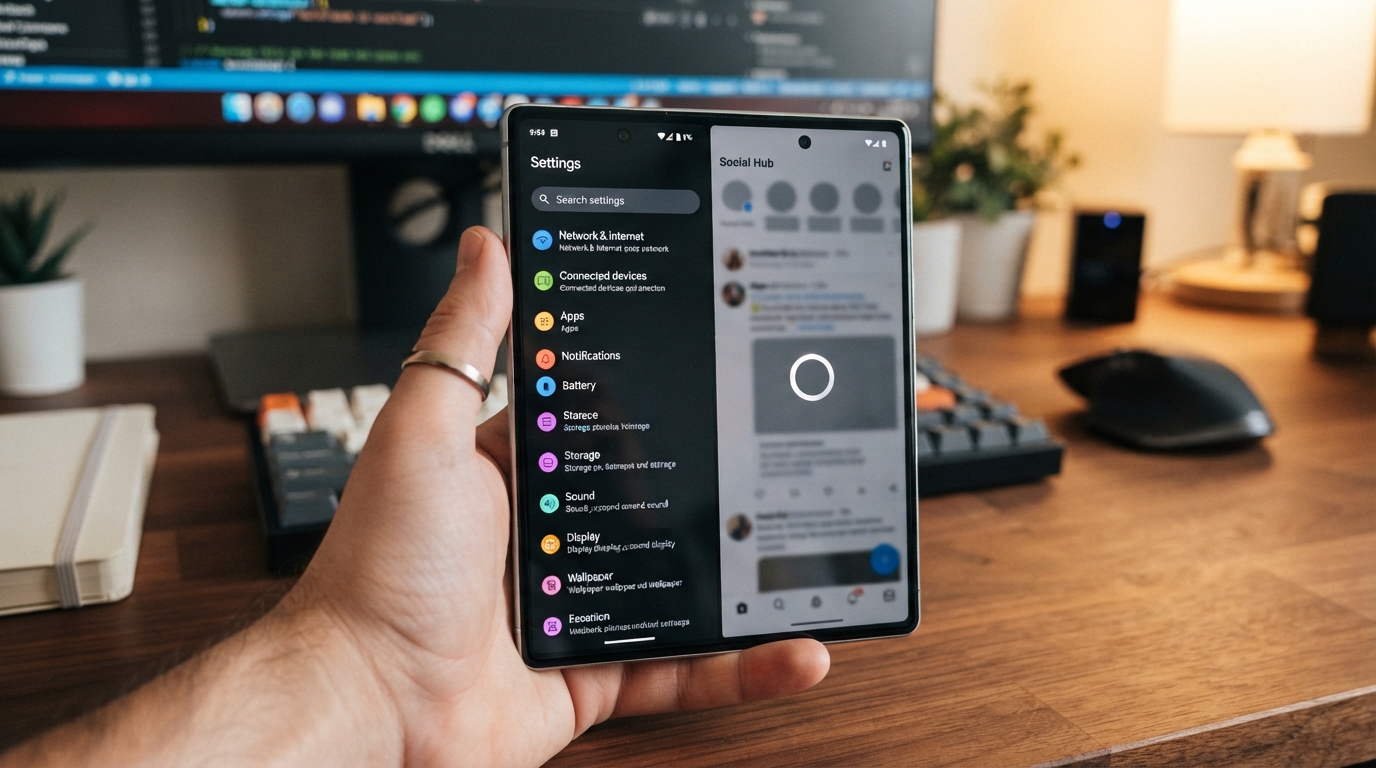
A phone that suddenly lags during ordinary tasks can often be improved with a few targeted checks rather than a full reset. The delay can make messages, maps, or a quick web search feel frustrating, even when the phone still works. We can check common causes without risking saved files or changing every setting. Some changes make menus feel quicker, but they cannot make older hardware finish demanding tasks faster. This Smartphone Performance Optimization guide starts with low-risk checks and saves disruptive steps for problems that keep returning. We will also separate device delays from slow internet, so we do not try the wrong fix. A few minutes spent testing one change at a time can protect battery life and give us a clearer sense of what helps. Results depend on the phone, its software, and the apps we use. Start with the least disruptive change, then check whether the same task feels better.
Key Takeaways
- Retest the task that felt slow after each change.
- Check storage, connection, and individual apps before changing advanced settings.
- Use background limits only for apps that do not need timely alerts.
- Lower animations to change how fast the screen feels, not app processing.
- Back up important data before considering a factory reset.
Why Is Your Android Phone Running Slowly or Freezing?
If only websites load slowly while other phone tasks respond normally, check the connection before blaming the device. A slow page can point to weak Wi-Fi or mobile service, not poor phone performance. Start with the symptom and note when it happens.
Storage holds photos, music, and other files, while memory is the working space Android uses to run apps and system processes. Nearly full storage and limited working memory are different issues, even though both can affect how the phone behaves. Android manages memory as apps open and close, so many open tasks do not always mean we should close everything ourselves. The Android Developers memory guide explains how Android handles app memory.
Check whether the delay affects the whole phone, one app, or only an internet task before changing settings.
An Android phone running slow and freezing may have low free storage, a software issue, or one app that keeps failing. Record what we were doing just before the freeze, such as opening a camera or switching apps. That detail helps us separate a device-wide problem from a single app’s behavior.
To fix a phone lagging on Android, first note when and where the delay occurs. Then check storage, the internet connection, and whether one app alone is affected. If browsing is slow but menus and offline apps respond well, test a different network before changing phone settings.
A phone can also feel slow when a task is demanding or the device is busy. One pause during a large download does not prove a lasting fault. Repeating delays during simple tasks deserve closer attention, especially when they affect more than one app.
When the problem appears only in one app, check that app’s behavior and updates before blaming Android. If it happens across the device, look for a broader cause. Slow browsing alone calls for a connection check, not a storage cleanup.
Nearly full storage can leave less room for normal use, while memory concerns relate to active apps and system work. These problems can overlap, but they call for different checks. Keep the two terms separate as we test the phone.
Treat a persistent connection problem as a network issue and contact the network administrator, internet provider, or mobile carrier.
What Can You Fix in a Few Minutes?
A restart is the quickest low-risk check, but it is a diagnostic step rather than a guaranteed cure. There is no dependable one-step fix that guarantees a speed boost in 10 seconds. Test one change at a time so we can see whether ordinary use improves.
Restarting can take longer than 10 seconds, and its value is that it clears a temporary problem from active use. Google’s guidance says most phones restart if we hold the power button for about 30 seconds, or until the phone restarts. Button steps vary by phone, so use its normal restart controls when available.
App updates can fix known faults or improve compatibility with the phone’s software. Google Play lists available updates under Manage apps & devices. A system update can also address software problems, but menu names may differ across devices and Android versions.
- Restart the phone using its power menu or the maker’s restart instructions.
- Install available app updates through Google Play’s Manage apps & devices screen.
- Check for a system software update in Settings.
- Retest the same task after each change, such as opening the same app or page.
Do not change several settings in one sitting and then guess which one helped. The same task provides a useful comparison, even if its timing is not exact. If a restart fixes the delay only briefly, note how soon it returns.
Software updates may take time to download and install. Keep enough battery power for the process, and follow any prompt to connect the phone to power. A phone may restart during an update, so avoid interrupting it.
These settings can look different on Samsung, Pixel, and other Android phones. Search Settings for “system update” if the menu is not easy to find. Check Play Store separately, since app updates and system updates are different.
Restart after each change so we can tell which action, if any, changed the result.
How Does Smartphone Performance Optimization Start With Storage?
Freeing space is safest when we identify what a file or app contains before removing it. Start with large downloads, backed-up photos, and apps we recognize as unused. Keep what matters and remove only items we can replace or no longer need.
Check large downloads and backed-up media before deleting files, since they often take up space without being needed on the phone. Files by Google can help find downloads and other items for review. A cleaner app cannot identify every cause of lag, so cleanup should not replace diagnosis.
Free up space without deleting what matters
Review the Downloads folder for old videos, documents, and duplicate files. Open a file before deleting it when its name is unclear. Check that photos and videos have backed up before removing local copies.
On Android 14 and later, Smart Storage can automatically clear backed-up photos and videos when device storage is almost full. This can help when cloud copies exist, but we should confirm that backup is complete first. A missing backup can turn a space-saving step into lost memories.
Files by Google is a practical cleanup choice because it helps us review items rather than promising a faster processor. We should still decide what to keep. Avoid deleting folders just because their names look unfamiliar.
Choose cache clearing, app storage, or archiving
Cache means temporary app files. Clearing an app’s cache removes those temporary files, and the app may load more slowly the next time it opens. Clearing app storage is different: it permanently removes that app’s saved data.
| Action | What it removes or preserves | Personal-data impact | Suitable use |
|---|---|---|---|
| Clear cache | Removes temporary app files | Saved app data stays | Fix a temporary app issue |
| Clear app storage | Removes all saved app data | Local settings and files may be erased | Reset an app we are ready to set up again |
| Archive an app | Removes app software but keeps its icon and personal data | Personal data stays on the device | Free space without fully removing an infrequently used app |
Android can archive apps we rarely use while saving personal data and leaving their icons on the device. We can download an archived app again if it remains on Google Play. This option suits an app we may need later but do not use often.
Choose cleanup based on what we want to remove. Clearing cache addresses temporary files, while clearing storage erases saved app data. Archiving keeps that data but removes the app software for now.
Clear cache for temporary files, not app storage, unless we are ready to erase that app’s saved data.
How Can You Find an App That Is Slowing Your Phone?
Safe mode can show whether a downloaded app is causing a slowdown. It temporarily turns off all downloaded apps, so the phone runs without them during the test. Compare the same task in safe mode and normal mode.
If the issue disappears in safe mode, a downloaded app is likely responsible. That is a useful clue, not proof that every app is faulty. The way to test an Android phone running slow and freezing on Samsung is similar, but Samsung’s safe-mode steps can differ from other phones.
Use safe mode to test for downloaded apps
Use the manufacturer’s instructions to restart in safe mode. The steps and app menus vary by phone, including Samsung models. Safe mode temporarily disables downloaded apps, but it does not delete their data.
Test the same task that caused trouble, such as opening a page or switching between two apps. If the delay remains, a downloaded app becomes a less likely cause. If the phone behaves normally, focus on apps added or updated near the time the slowdown began.
Remove recent downloads one at a time
Google recommends removing recently downloaded apps one at a time and restarting after each removal. App updates are available through Google Play’s Manage apps & devices screen. Removing one app at a time gives us a clearer test than deleting several at once.
- Restart in safe mode using the phone maker’s instructions.
- Test the same task that felt slow or caused freezing.
- If the issue disappears, remove recent downloads one at a time.
- Restart normally after each removal, then repeat the same test.
- Reinstall only apps that were not responsible for the slowdown.
Which apps should we get rid of? Start with unused apps and recent downloads that match the start of the problem. We should not remove default system apps indiscriminately, since they may support basic phone features.
If removing an app changes the result, leave it off for a while and retest normal use. If the problem returns after reinstalling it, that gives us a stronger clue. A recent download can also change behavior after an update.
Some apps store important files or sign-in details on the phone. Check what an app contains before removing it, especially if we use it for work or records. A careful test protects useful data and narrows the cause.
Remove only one suspected app at a time so the result identifies a cause rather than creating a new uncertainty.
Which Background Settings Reduce Lag Without Breaking Apps?
A background limit can save resources for an app we rarely use, but the same limit can disrupt timely alerts. Background apps can use memory and CPU cycles while they run. Limit selectively, not across every app.
Keep background access for apps whose alerts or ongoing functions matter, such as messaging, navigation, or health tools. Android may restrict apps that use too many resources, and device makers can set different rules. The Android background-task guidance explains why these limits can affect app work.
Restrict background activity selectively
Restricting a rarely used app can reduce its background work, but it may delay alerts or stop a feature from updating. Test one app and watch for changes in notifications. Avoid limits on services we rely on throughout the day.
Force-stopping an app ends its current activity, but it does not fix every cause of lag. The app may restart when we open it or when another event calls it. Force-stop is best for a stuck app, not a routine speed habit.
Reduce demanding home-screen extras
Widgets that refresh often and live wallpapers that animate can use phone resources. Removing one that we do not need can simplify the home screen. We do not need to close every recent app to improve speed.
For an app that uses many resources, a lighter version or web version may suit our needs. Facebook Lite and Messenger Lite are examples of streamlined apps. Chrome can also open progressive web apps, which provide app-like features through a browser.
| Option | What it changes | Likely tradeoff | Best fit |
|---|---|---|---|
| Restrict background activity | Limits an app’s work when not open | Alerts or updates may arrive late | Infrequently used apps |
| Force-stop an app | Ends its current activity | The app may restart or miss a task | A stuck app we need to close |
| Use a lite or web version | Runs a lighter app or browser-based service | Some features may be missing | Resource-heavy apps we use for basic tasks |
Facebook Lite and Messenger Lite are examples, not recommendations for every user. A web version may also lack features found in a full app. Compare the functions we need before switching.
Monitor battery life after changing background settings. Less background work may help battery use, but limits can also make an app less useful. Keep alerts enabled where timing matters.
Keep background access for apps whose alerts or ongoing functions we rely on.
Do Developer Options Make Android Feel Faster?
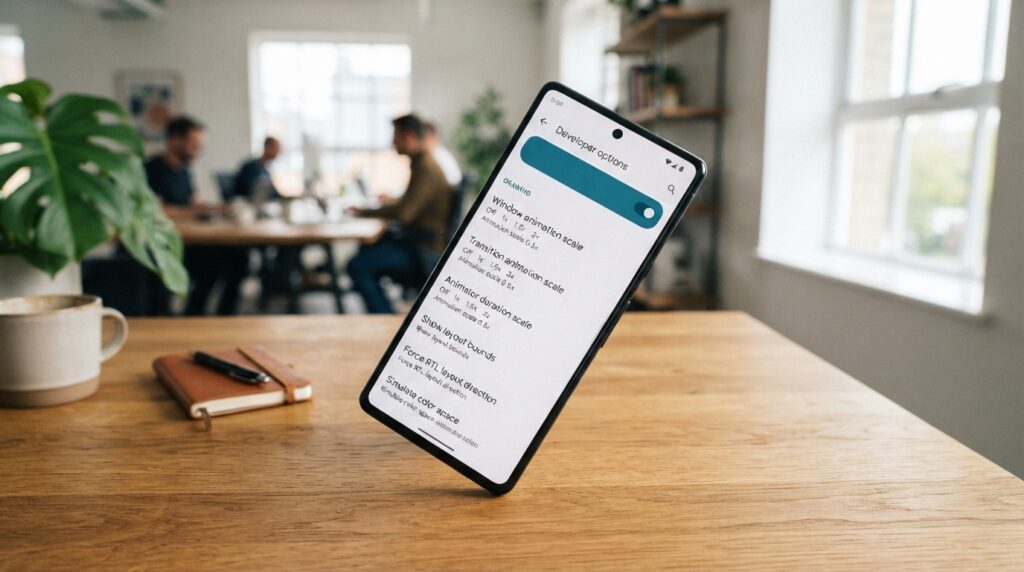
Lower animation scales shorten the visual transition between actions, not the work an app must do. Android exposes Window animation scale, Transition animation scale, and Animator duration scale. Start at 0.5x to make navigation feel quicker without removing every transition.
Animation changes affect how the screen feels, not how fast apps load or hard tasks finish. Tapping Build number seven times enables Developer options, though menu paths vary by phone. These advanced settings are easy to change, so note their original values first.
Change animation scales carefully
On many Android phones, Build number appears in the software information area of Settings. Tap it seven times to enable Developer options, then find the three animation scale controls. The exact menu path depends on the device and its software.
Set Window animation scale, Transition animation scale, and Animator duration scale to 0.5x. This shortens the visual effects when windows open, screens change, or other animated actions occur. Try each setting with normal use before deciding whether it feels right.
On a Samsung Galaxy S22, setting the scales to 0.5x halved animation speed and made navigation and app opening feel faster. It did not make the phone perform tasks faster. That 0.5x test shows the difference between a quicker visual response and faster processing.
Know what animation changes do not speed up
Animation scales do not make a large app download faster or shorten a complex edit. They change the time spent showing a transition. A phone can feel more responsive even when the processor takes the same time to finish work.
Turning animations off may make screen changes feel abrupt. The 0.5x setting offers a middle ground for people who want shorter transitions without removing them. We can return to the original setting if movement feels uncomfortable.
Developer options contain other controls that can affect how apps work. We should avoid changing settings whose purpose we do not understand. Animation scales are the relevant controls for this limited adjustment.
If the phone feels less comfortable or behaves oddly after a change, restore the original animation values.
How Do You Improve Gaming Performance on Samsung Galaxy?
Galaxy gaming controls can prioritize performance, but their availability and menu paths depend on the device software. On Galaxy devices running One UI 7, Game Booster offers a high performance mode. Choose for the game, since speed and image quality can trade off.
Higher performance settings may use more power, so watch battery use during long play sessions. Samsung’s menu paths and controls do not appear on every Galaxy device. We should check the software version before looking for a setting that may not exist.
Choose Game Booster performance settings
On One UI 7, select high performance mode through Gaming Hub > More options > Game Booster > Game optimisation > Performance. This path sets the overall game optimization choice. It may not match older software menus.
High performance can suit a game where quick response matters more than longer battery life. A lower setting can make sense when we want less power use or prefer longer play away from a charger. Check how the phone feels in the game we actually play.
Set game-specific controls and quiet mode
Samsung’s individual-game settings can include optimization level, frames per second, screen resolution, and frame booster. Changing one control can affect another part of the experience. More frames do not always look better if resolution or stability suffers.
| Setting | Where to find it | What can be adjusted | Practical tradeoff |
|---|---|---|---|
| Game optimisation | Gaming Hub > More options > Game Booster > Game optimisation | Performance mode on One UI 7 | More power use may shorten play time |
| Individual-game controls | Game Booster settings for a selected game | FPS, resolution, frame booster, and optimisation | Higher FPS can affect image quality or power use |
| Galaxy Game mode | Settings > Modes and Routines | Do not disturb and automatic activation conditions | Fewer interruptions, but alerts may be silenced |
Galaxy Game mode can use Do not disturb and automatic activation conditions. Set it to start during a game if interruptions are the main problem. Check which alerts it silences before relying on it.
These controls can vary by Galaxy model and software version. If the listed menu does not appear, the device may not support that feature or may use another path. Avoid changing general phone settings to match a menu from another model.
Check the game’s FPS and resolution together, since raising one does not guarantee a smoother overall experience.
What Does *#9900# Do on a Samsung Phone?
On supported Samsung phones, *#9900# opens SysDump from the stock Phone app without placing a call. The code may not work in a third-party dialer. Use the stock dialer and do not tap the call button.
SysDump is a diagnostic utility, not a general Android speed switch. Its “Delete dumpstate/logcat” option removes temporary system log files. Those files may occupy a few hundred megabytes to over a gigabyte, but that range is an estimate, not a guaranteed Samsung specification.
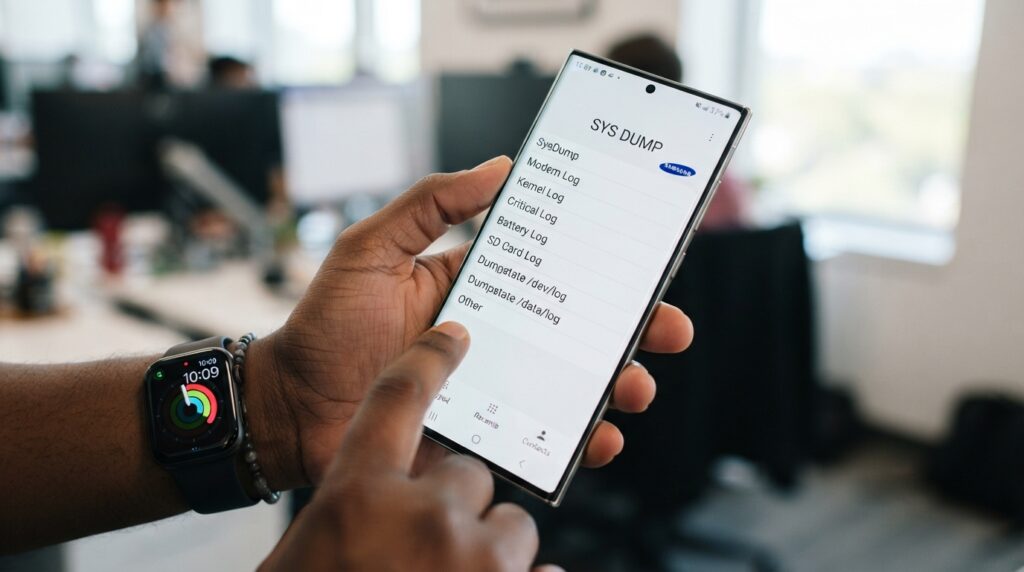
Log files record system events that can help with troubleshooting. Deleting them removes those temporary records, not photos or personal documents. The option is useful when we have a reason to clear logs, but it is not a fix for every slowdown.
On some newer Samsung phones, including S24 and S25 series models, Auto Blocker may need to be temporarily disabled for the code to work. The code can also fail in a third-party dialer even when the phone supports SysDump. Menu access depends on the device and its security settings.
SysDump includes a Debug Level setting. It is usually set to Low, and higher logging levels can slightly affect performance and battery life. Most people do not need to change it during ordinary phone use.
Because the code opens a system utility, avoid changing options whose purpose is unclear. Deleting logs is distinct from clearing app data or changing Android settings. If we are unsure, leave the other controls alone.
The possible log-file size can vary, so we should not expect a fixed amount of free storage after cleanup. The code is an optional Samsung tool, not a shortcut for making every phone faster. Leave Debug Level at Low unless we have a specific troubleshooting reason to change it.
When Should You Reset an Android Phone?
A factory reset is a last-resort software cleanup, not the next step after one slow app or a brief freeze. Google recommends considering a reset only after other troubleshooting. Back up first, because a reset removes data from the phone.
A factory reset removes all phone data, uninstalls apps, and removes their associated data. Data saved in a Google Account can be restored, but installed apps and their associated data are removed. We should know what exists outside the phone before starting.
A reset erases the phone’s local data, so confirm the backup before choosing the reset option.
Back up before erasing the phone
Back up important photos, messages, and files before resetting. Check that the backup finished, rather than assuming it started. Confirm which items are stored in the Google Account and which remain only on the phone.
A reset may help with a persistent software problem, but it cannot repair damaged hardware. It also may not fix a lasting internet connection problem. Contact the network administrator, internet provider, or mobile carrier for persistent connection trouble.
Use a reset only after other checks
Before resetting, use this preparation sequence:
- Try other troubleshooting first, especially if one app or one task causes the delay.
- Back up important data and confirm the backup completed.
- Check what is stored in the Google Account and what remains on the phone.
- Remember that installed apps and their associated data will be removed.
- After the reset, reinstall only necessary apps and retest the same task.
Reinstalling every app at once can bring the original problem back. If a downloaded app caused the slowdown, installing it again may cause the same issue. Add apps gradually and test normal use after each group.
A reset also takes time to set up again. We may need account access, passwords, and two-step sign-in methods after erasing the phone. Confirm that we can reach these details before starting.
Do not treat a reset as a cure for every kind of lag. A hardware fault needs a different fix, and a network delay belongs to the connection. Reset only when software troubleshooting points to a device-wide problem that remains.
Do not start the reset until the backup is complete and we know which data is stored outside the phone.
Conclusion
Better responsiveness usually comes from matching the fix to the symptom rather than changing every setting at once. A web delay, a single misbehaving app, and slow device-wide performance point to different causes. Test the same task after a change to judge whether it helped.
Keep the phone’s performance and battery life in view when changing settings. A limit that improves one app may delay another app’s alerts. Choose the smallest change that addresses the problem we can see.
If the phone feels sluggish now, check available storage and restart once. Then repeat the task that was lagging and note whether the result changed. Check free storage today, restart the phone, and retest the task that was lagging.