
A phone can feel warm during a demanding task, but sustained heat can slow performance and shorten battery life. That is a common concern in Smartphone Thermal Management. Warmth alone does not mean a phone is unsafe. Still, high temperatures can affect how well it works and how long its battery lasts.
Thermal throttling is the phone’s automatic reduction of processor speed and power to control heat and protect components. It can lower performance when the device needs to limit its temperature. These safeguards are part of normal operation, not signs that a phone has failed.
We can lower avoidable heat by changing how and where we use a phone. We can also learn how its built-in controls work before judging its performance. This guide offers practical steps and clear ways to assess cooling without risking the device.
We can reduce avoidable heat without disabling the safeguards that protect the device.
Key Takeaways
- Long, demanding tasks can make a phone warm.
- Thermal throttling limits power to control heat.
- Sunlight, charging, and weak signal can add heat.
- Stop demanding tasks when a phone feels uncomfortably hot.
- Keep built-in thermal protections enabled.
Smartphone Thermal Management: How Phones Control Heat
A phone manages heat by spreading it through internal materials and lowering power when those materials can no longer keep temperatures within limits. Both the junction temperature inside the device and its skin temperature at the outer casing matter.
Thermal throttling protects the phone when heat rises, so disabling it does not fix the source of heat. It removes a protective control and can expose components to unsafe temperatures. Leave Android’s thermal protections enabled.
Disabling thermal throttling does not solve overheating. Lowering the workload is safer than forcing sustained power.
Passive heat spreading inside a compact device
Graphite sheets, copper foils, and vapor chambers spread heat from hot spots across a wider area. A vapor chamber moves heat through the phone, but does not remove it. The chassis still needs to pass that heat into the surrounding air.
Passive cooling relies on heat spreading, natural convection, and radiation. A phone’s surface and nearby air affect how well those paths work. Some designs add active cooling with a heat bridge, fin stack, and micro-blower.
Coefficient of Thermal Spreading (CTS) measures how evenly heat reaches a surface. It is the average surface temperature rise divided by the peak rise. A CTS of 1 means ideal, uniform spreading.
Commercial phones have shown CTS values around 0.5-0.62. In simulations, a larger spreader supported 2.2-3.5 W at a 45°C skin limit as CTS rose from 0.5 to 0.8. At 3.5 W, it lowered simulated peak skin temperature from about 60°C to 45°C.
These figures describe specific measurements and models, not every phone. One platform reached 3.8 W at ideal CTS. Another analysis raised CTS from 0.43 to 0.84, allowing over 1.2 W more power before its skin limit.
PCB layout, materials and thermal interfaces
A printed circuit board, or PCB, helps move heat through copper layers and thermal vias. A thermal via is a small, plated hole that carries heat between board layers. One design example used 0.3 mm vias spaced 1.2 mm apart.
PCB guidance includes improving the ground plane, adding copper to solid ground layers, and connecting key IC ground pins. Designers can separate hot chips and avoid placing high-power chips on opposite board sides. Connectors can sit opposite key chips when space allows.
Thermal conductivity shows how well a material carries heat. Example values are 401 W/m-K for copper, 237 for aluminum, and 500 for graphite. Graphite has about one-quarter copper’s density. Graphene can reach 5,000-5,300 W/m-K, while one thermal paste example reaches 8 W/m-K.
A thermal interface material (TIM) fills small gaps between parts so heat can pass across their contact points. Component placement, material conductivity, interfaces, and surface conditions all affect heat transfer. One PCB simulation modeled 5 W of power and a 40°C temperature rise.
Software controls and Android thermal signals
Android can track skin, battery, GPU, CPU, and USB-port sensors. Skin temperature helps keep the phone’s outer surface within thermal limits. The Android Thermal API has been available since Android 11, API level 30; its NDK API followed in Android 12, API level 31.
The API’s thermal headroom runs from 0.0 for no throttling to 1.0 for heavy throttling. Its mapping to status can differ by phone model. Apps should call getThermalHeadroom no more than once every 10 seconds; more frequent calls can return NaN.
Android thermal-status codes run from 0, no throttling, to 6, device shutdown. Some phones can report THERMAL_STATUS_NONE despite actual headroom or throttling. Developers should not rely only on getCurrentThermalStatus().
The Android Thermal API guidance lets games use headroom to estimate how long current performance may last. An app can reduce frame rate or graphics quality when a task may outlast that estimate.
Why disabling thermal protection is a bad fix
Smartphone thermal management in 2021 already included Android’s Thermal API, which arrived with Android 11. Searching for how to disable thermal throttling on Android, or how to disable it without root, does not change the heat source.
A Magisk module or other bypass would remove a safeguard rather than make the phone cooler. Android guidance says manufacturers should not disable thermal mitigation. Leave Android’s thermal protections enabled, since lowering workload is safer than forcing sustained power beyond the device’s thermal limits.
What makes phones heat up during everyday use?
A demanding game, a hot car or a weak cellular signal can all make a phone work harder and feel warmer. Long sessions and high screen settings can add load, while charging adds another source of heat. Warmth alone does not prove that a phone is unsafe, but shutdowns or rapid battery drain need attention.
Gaming at a high frame rate asks the processor and graphics chip to keep working quickly. A phone can become unstable when 120 FPS drops after 20-30 minutes. Capping play at 60-90 FPS may help keep performance steady.
Outdoor camera use can combine 5G, GPS, a bright screen, and direct sunlight. Each adds work or warmth, and sunlight also heats the casing. Switching to 4G and lowering brightness can reduce the load during a long photo or video session.
Wireless or fast charging can warm a phone, especially during demanding use. Weak or absent reception can also raise power use as the phone searches for a signal. Hotspot use, extended high-power apps, and many background apps can add to the strain.
| Situation | Heat contributors | Practical adjustment |
|---|---|---|
| Extended gaming | 120 FPS instability after 20-30 minutes | Cap play at 60-90 FPS |
| Outdoor camera use | 5G, GPS, brightness, direct sunlight | Switch to 4G and lower brightness |
| Charging or weak reception | Wireless or fast charging, weak signal | Pause demanding use; move where signal is stronger |
A processor can exceed 80°C if a phone does not manage it well. Overheating can freeze the screen, close apps, or shut down the device. Elevated temperatures also speed up lithium-ion battery aging and can drain a battery faster.
One RedMagic user reported a 54-60°C reading, but the sensor was not specified. That number cannot support a fair comparison or brand ranking. For practical ways to lower app load, see our smartphone performance optimization tips.
Treat a repeatable frame-rate drop, shutdown or fast battery drain as a reason to reduce the load, not as proof that one brand is inherently hottest.
How can we cool an overheating phone safely?
If a phone feels uncomfortably hot, stop using it and move it out of direct sunlight before trying anything else. Give it room to lose heat without adding cold or more power. Do not charge a hot phone until it has cooled.
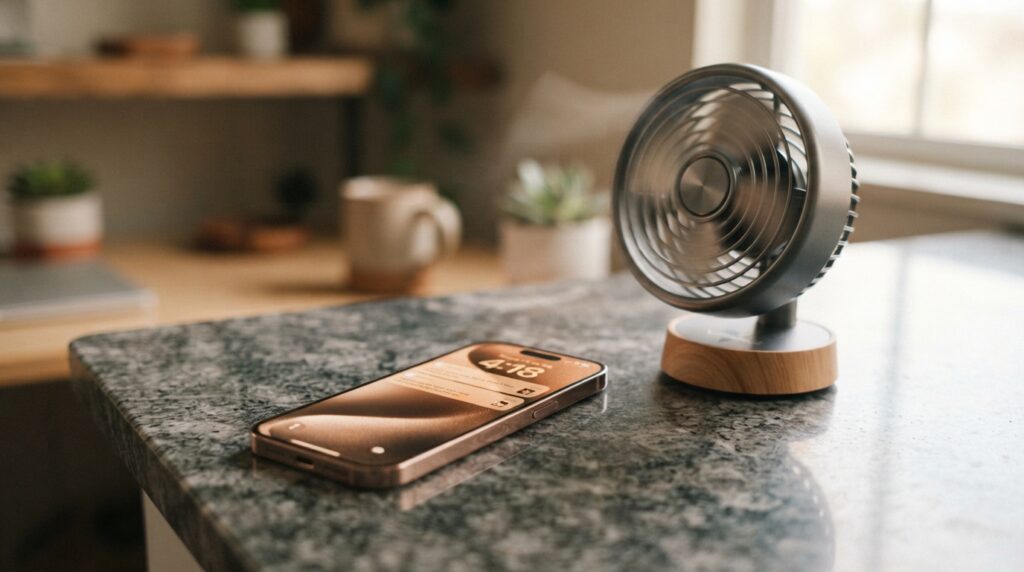
Let the device cool without adding more heat
Use these steps when the phone feels too hot to handle comfortably. A case can hold warmth near the surface, and heavy use keeps adding heat. A nearby fan can improve airflow without sudden temperature changes.
- Stop the demanding task, such as gaming or streaming.
- Move the phone out of sunlight and remove its case temporarily.
- Place it on a cool, hard, ventilated surface and use nearby airflow.
- Unplug it if charging, then power it off if needed.
- Wait until it has cooled before using or charging it again.
Do not put a phone in a refrigerator or use ice to cool it. Abrupt cooling can harm the device. A hard surface with airflow gives heat a safer path away from the casing.
Samsung advises stopping use of a Galaxy phone that feels uncomfortably hot. If it stays hot for a prolonged period, leave it unused while it cools. Galaxy temperature safeguards may dim the screen, reduce performance, pause charging, restrict features, or shut the phone down.
Prevent the same heat buildup from returning
Once the phone feels normal, resume with a lighter workload. Use Standard refresh-rate mode to reduce power use on supported Galaxy phones. Avoid charging during heavy gaming or streaming.
If charging is needed, use a manufacturer-approved charger on a cool, flat surface with good ventilation. Disconnect a hot Galaxy phone and wait for it to cool before charging again. A soft bed or covered couch can trap heat around the device.
Lowering brightness or choosing a lower frame rate can reduce power during demanding use. Make one change at a time, then note whether the same task remains stable. This helps us see whether the setting change made a difference.
If the device remains unusually hot after it has been left to cool, stop using it and arrange qualified service rather than repeatedly restarting it.
How do we check for throttling and compare cooling designs?
A fair throttling check starts with a cool phone, closed background apps and a test long enough to reproduce the slowdown. Repeatable conditions matter more than a single peak reading. Stop if the phone becomes uncomfortably hot.
Compare the same workload under the same conditions. Stop a test if the phone becomes uncomfortably hot.
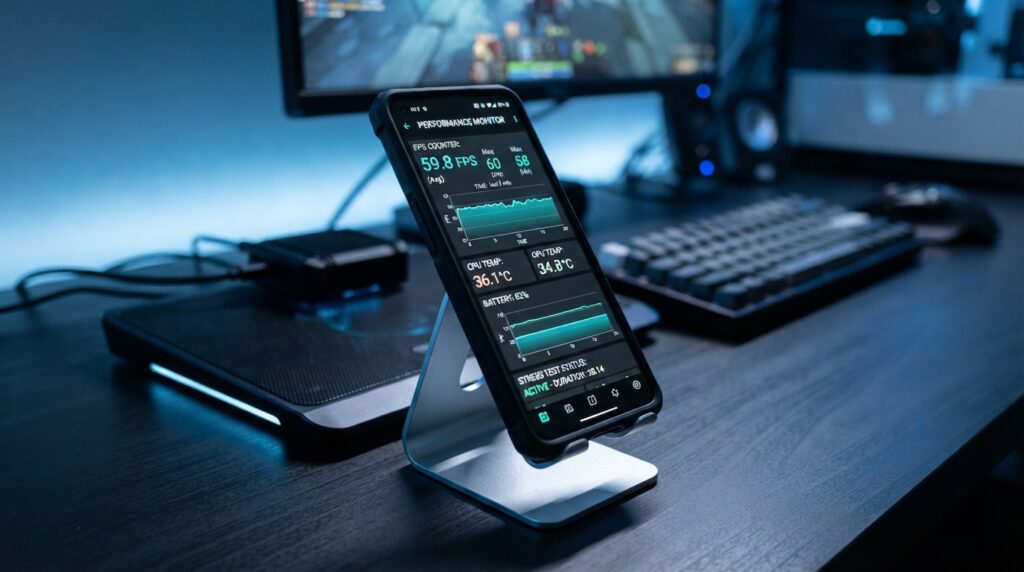
Use a repeatable stress test
Before testing, write down the game or app, brightness, room conditions, and settings. Choose a duration that matches the slowdown you want to check. Record frame rate, temperature, battery use, and test conditions.
- Let the phone cool for at least 10 minutes.
- Close background apps before starting.
- Choose a test duration that matches the issue.
- Record frame rate, temperature, battery use, and conditions; stop if it feels uncomfortably hot.
A 20-minute CPU test or 15-minute Legacy test can show drops during extended use. Longer tests generate heat and use more battery. The CPU test offers 5, 10, 20, and 40-minute choices; Legacy offers 2, 15, 30, and 60 minutes.
The GPU test choices run from 15 seconds to 60 minutes. A listing for CPU & GPU Throttling Test recommends cooling the phone for at least 10 minutes and closing background apps first. Its extended-use test guidance also suggests 20-minute CPU or 15-minute Legacy runs.
Compare sustained results, not a single temperature
Reported results describe different phones, games, settings, and test lengths. They cannot establish one cross-brand winner. A RedMagic 11 Pro+ uses a closed-loop liquid-cooling system with a piezoelectric ceramic micro-pump, a 24,000-25,000 RPM fan, and a 13,116 mm² vapor chamber.
In one two-hour maximum-settings Honkai: Star Rail session, the RedMagic 11 Pro+ held 60.9 FPS and peaked at 45.3°C. It scored 84.8% in 3DMark stability. In a separate 30-minute Star Rail stress test, its motherboard core stayed below 42°C.
The RedMagic 11 Pro fan is rated at 24,000 RPM and IPX8. Its fluorinated coolant is described as staying liquid from -60°C to 108°C. These design details do not make its results directly comparable with another phone’s test.
The ASUS ROG Phone 9 Pro held 60 FPS in Zenless Zone Zero at about 43.4°C. With the external AeroActive Cooler X Pro, its temperature was 31.3°C. ASUS claims the accessory can provide up to 29% better heat management.
In a 30-minute maximum-graphics game session, the Galaxy S24 Ultra reached 43°C. Frame rates dipped into the 40-50 FPS range, and the phone used 14% battery. The iPhone 17 Pro was reported at 34.8°C, compared with 37.8°C for its prior generation.
What cooling apps and Android signals can tell us
A monitoring app can help us spot a performance drop, but a temperature number needs context. Sensor locations and test conditions differ. An app cannot make disabling thermal controls safe, and a Magisk module cannot remove the heat source.
Android’s Thermal API offers status and headroom signals, but phones can report misleading status readings. Apps can use those signals to lower frame rate or graphics detail before a slowdown becomes severe. Compare repeated results from the same workload and conditions before deciding whether a cooling accessory or a lower game setting helps.
Conclusion
We can usually manage avoidable heat by changing the conditions that create it and letting the phone’s safeguards work. The main steps are to lower demanding workloads, limit added environmental heat, and keep thermal protections enabled.
Pick the task that reliably heats your device, then repeat it with lower brightness or a lower frame-rate cap. Note whether the slowdown changes under the same conditions. Try one lower-load setting during the task that causes the heat, then check whether performance stays steadier.