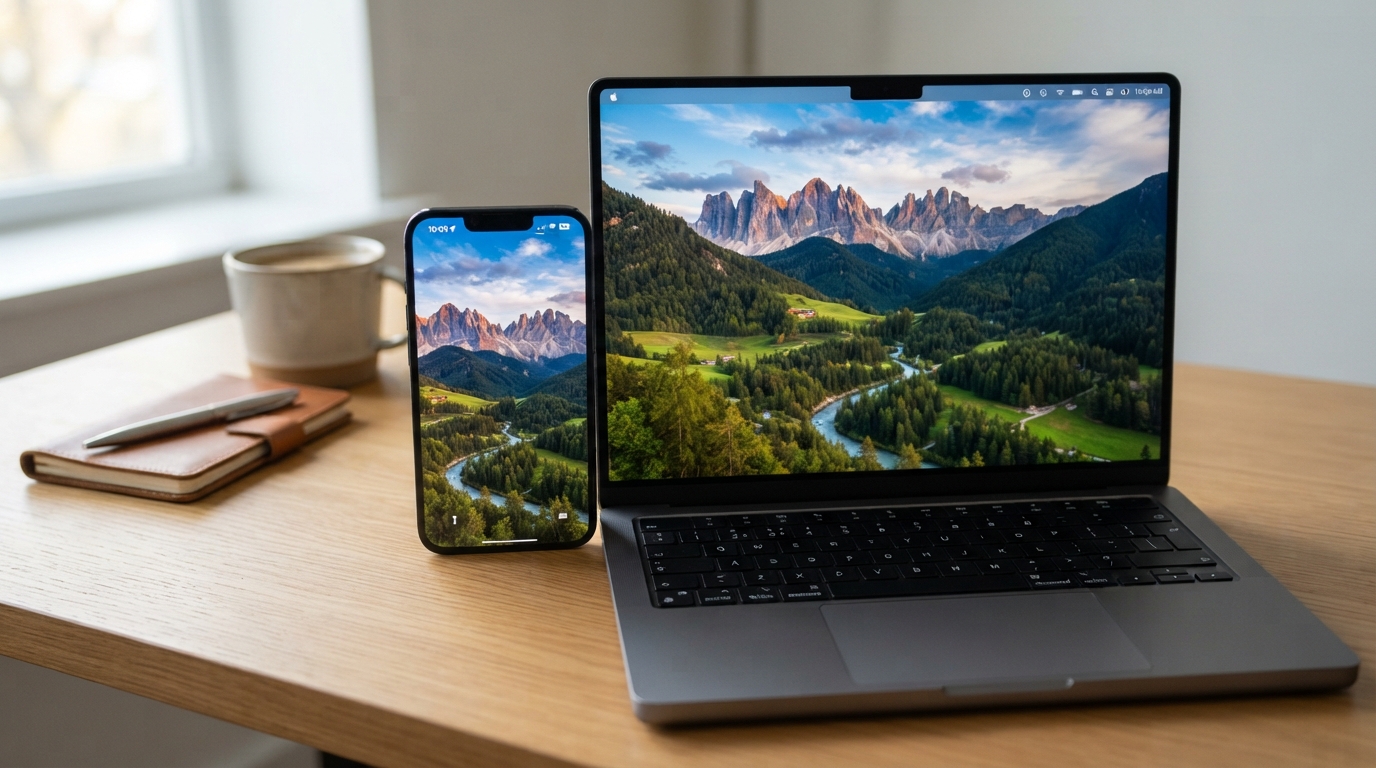
A phone can look vivid and still show a photo’s colors differently from a laptop or tablet. A bright store display may make reds pop, while the same photo looks softer on a laptop.
That difference matters when we edit images, shop online, or simply want a screen that feels easy to view. We can often improve comfort and consistency with simple settings, but visual changes cannot prove color accuracy.
Professional color work calls for measurement, not just a pleasing picture. This guide helps us choose a practical goal and a sensible way to reach it.
Key Takeaways
- Built-in color modes can make everyday viewing more comfortable.
- A visual adjustment does not create a dependable color profile.
- A colorimeter measures display light against known color patches.
- Creative work benefits from repeatable measurement and profiling.
- Samsung Smart Calibration adjusts selected TVs, not Galaxy phone screens.
Decide whether your priority is comfortable everyday viewing or repeatable color for creative work.
What Can Smartphone Display Calibration Actually Change?
Calibration changes how a display behaves, while profiling records the behavior so color-managed software can interpret it. An ICC profile is a file that describes how a display reproduces color so color-managed software can interpret its output.
Changing the picture does not automatically create a profile other apps can use. Phone settings may change visible color, brightness, or contrast, but they may not record those changes in a transferable file.
Calibration changes output, profiling describes it
On a monitor, calibration can change display behavior through on-screen controls, graphics-card lookup tables, or both. A lookup table adjusts the signal sent to the screen.
Profiling comes after calibration. It describes the display’s gamut, white point, and tone response so compatible software can account for its color behavior.
ICC files commonly end in .icc or .icm. Conforming profiles can work across compatible color management systems, and the International Color Consortium lists standards that support ICC profile use.
Treat a visual improvement as a useful adjustment, not proof that a transferable profile exists.
A phone screen is not a desktop monitor
Desktop monitors often offer controls or software tools designed for measurement and profiling. Phone screens usually offer preset color modes and sliders, not the same calibration workflow.
A phone may look warmer or more balanced after a setting change. That improvement applies to the image we see, yet other apps may not know how the screen now behaves.
Even a file saved on a phone may not guide every app’s output. Color-managed programs must read and apply profile information to use it as intended.
For example, a photo editor might handle color in a way that a basic gallery app does not. The same file can then look different between apps.
Phone settings can still help us settle on a preferred look. Keep the distinction clear: adjusting output is not the same task as measuring and describing it.
Can a Phone Accurately Calibrate Another Display?
A phone app can help spot an obviously bright or cool monitor, but it is not a dependable substitute for a colorimeter. A colorimeter measures light from the display against known RGB patches.
Use a colorimeter when measured monitor accuracy matters. A phone camera can offer a rough comparison, while visual patterns can reveal obvious issues without giving a measured result.
| Method | What it can check | Main limitation |
|---|---|---|
| Phone app | Rough brightness or cool tint | Camera processing and reflections vary |
| Visual test pattern | Clipping, contrast, and gamma steps | Depends on eyesight and room light |
| Colorimeter | Light output against RGB patches | Needs a suitable measurement workflow |
Phone cameras and ambient-light sensors can disagree because exposure, camera processing, and reflections change readings. A glossy screen may reflect a window and shift the result.
Monitor gamma charts check how a display handles changes from dark to light. A common web and PC monitor target is gamma 2.2; 2.0 and 2.4 patches can help us compare nearby tones.
Those are monitor checks, not targets for a phone screen. Presets named Racing, FPS, or Vivid may also change a monitor’s contrast or color before testing.
Viewing angle matters too. IPS and PLS panels tend to show less color shift from the side than TN panels. Judge a 34-inch ultrawide from a centered, normal viewing position.
For a monitor, check a 2.2 gamma pattern from your usual seated position before treating a phone reading as meaningful.
How Does Android Color Management Affect Phone Colors?
Android color management helps compatible apps render color more consistently across supported display technologies. Android 8.1 and higher support color management across display technologies.
Accurate color depends on the screen, its mode, and the app working together. A wide-gamut display can show a broader range of colors than a standard sRGB screen, but that alone does not make every image accurate.
Android’s wide-color support
Some images use a wider range of colors than ordinary web content. A phone needs compatible display hardware and software to show those extra colors as intended.
Android 8.1-or-higher devices with wide-color displays should support wide-color management when their screens are well-characterized and support Display-P3.
Display-P3 uses Digital Cinema Initiatives primaries and the sRGB transfer function. In plain terms, its color range is wider than sRGB, while its tone curve follows the same basic function.
An app must also handle the image’s color information. A well-made screen cannot fix an app that ignores the image’s color space or applies it incorrectly.
Display-P3 and the factory baseline
Many photos and web pages use sRGB, a common baseline color space. A phone with a broad gamut still needs to render that ordinary content accurately.
For supported wide-color screens, Android’s minimum factory calibration must allow accurate sRGB content and support D65 and D73 white points. A white point describes the tint of white on the display.
Factory calibration gives the phone a starting point, while the selected color mode affects the image we see. Natural, standard, or vivid modes can change the screen’s look.
Apps may also differ in how they handle color-managed content. The same photo can look richer in one app and flatter in another if their color handling differs.
A wide-gamut screen alone does not guarantee that every app will show sRGB images accurately.
Which Smartphone Display Calibration Apps Are Useful?
A phone calibration app can be a quick experiment for visible tint or black-and-white appearance, not a laboratory measurement. Smartphone display calibration software may offer a visual adjustment, but its advertised finish time does not measure color accuracy.
Use an app only as a visual tool, not proof of measured accuracy. A quick change may help us decide whether a screen looks better, but it does not establish a reliable profile.
What a basic calibration app can adjust
The Display Calibration app says it analyzes a phone screen’s blacks and whites. It says calibration can finish in up to 13 seconds, but speed says nothing about the result’s accuracy.
The app’s Google Play listing showed a 4.0 rating from 29.7K reviews when updated on October 4, 2026. That is listing metadata, not evidence that a phone has been measured against a standard.
A smartphone display calibration app may change how a screen looks on some devices. Results depend on the phone and its software, so the same app can behave differently across models.
Apps also differ in the controls they expose. A slider or color overlay may change the picture without creating an ICC profile other color-managed programs can read.
Check privacy and limits before installing
Review the app’s privacy details before granting access. The listing says Display Calibration may share location, app activity, and two other data types with third parties, and says data is encrypted in transit.
That information can help us decide whether the app’s function is worth its requested access. Do not treat a rating or a fast completion claim as a test result.
Look at the same familiar image before and after any change. An app that makes a test screen look neutral may still leave photos looking too warm or too saturated.
Compare the same image before and after in your normal apps, and keep the app only if the change is useful and its permissions make sense to you.
What Does Samsung Smart Calibration Calibrate?
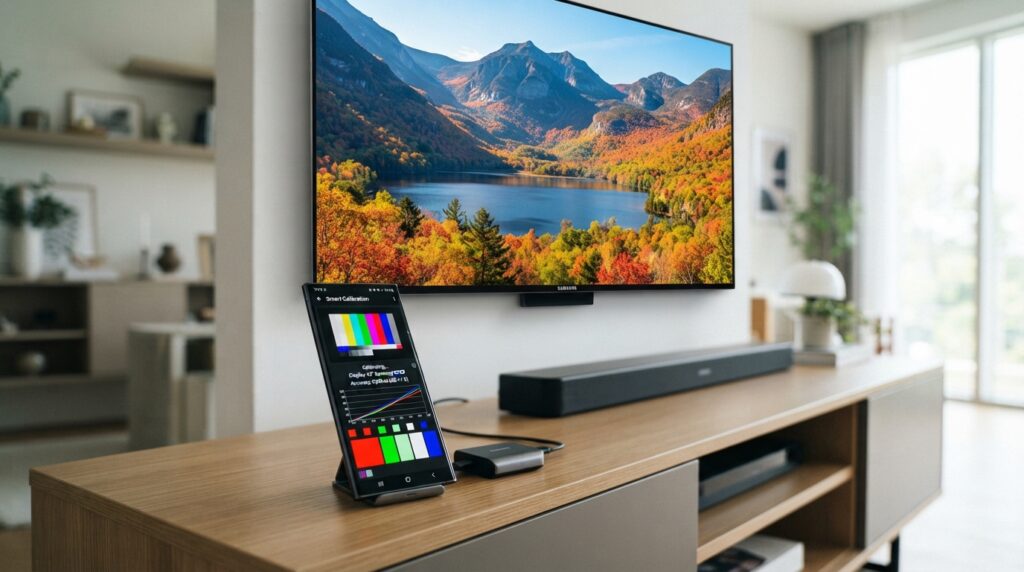
Samsung Smart Calibration uses a smartphone to adjust a supported Samsung TV or display, not the Galaxy phone’s own screen. The phone serves as part of the TV adjustment process.
Smart Calibration changes picture quality on selected Samsung displays. It can adjust brightness, contrast, and color accuracy on supported products.
Smartphone display calibration on Samsung means using the phone’s available display settings to change how its own screen looks. Samsung Smart Calibration is a separate TV feature, despite the shared word “calibration.”
The feature does not measure a Galaxy panel. It uses the smartphone camera during a procedure for a compatible external Samsung TV or display.
There is no universal Samsung screen calibration code to enter for a Galaxy phone. A code found online may open a diagnostic menu, but that does not make it a general screen calibration tool.
Selected Samsung TVs from 2022 to 2025 use Smart Calibration to adjust picture quality in Movie mode. Compatibility depends on the display model and its available feature set.
A Samsung Galaxy phone’s own color mode and brightness controls remain the direct ways to change its screen appearance. Those controls serve a different purpose from a phone-assisted TV adjustment.
Use ordinary display settings for a phone, and reserve Smart Calibration for a compatible external Samsung display.
How to Run Samsung Smart Calibration and Check TV Support
First confirm that both the phone and TV are supported, since the feature does not work on every Samsung model. Compatible phones include Galaxy S, Note, Fold, and Z Flip models released after January 2019, plus iPhones released after January 2019 with Face ID.
The phone and TV must use the same Wi-Fi network. Support also varies by model year and calibration mode, so match the product to the table before starting.
Check the TV and phone first
Selected Samsung TVs from 2022 to 2025 adjust picture quality in Movie mode. The 2022 and 2023 models below show how support differs across product groups.
| Model year or group | Compatible products | Supported mode |
|---|---|---|
| 2022 Professional TVs | QN900B, QN800B, QN700B, QN95B, QN90B | Professional |
| 2022 Basic TVs and monitors | S95B, Q80B, Q70B, Q60B, The Serif, The Frame, The Sero, M70B or higher, G65NB or higher | Basic |
| 2023 Professional TVs | Neo QLED 8K and Neo QLED 4K QN90C or higher | Basic and Professional |
| 2023 Basic TVs | S9*C, Q60C or higher, LS03C | Basic |
| 2023 monitor models and modes | S90PC, Smart Monitor M70C or higher, Gaming Monitor G95SC and G97NC | S90PC: Basic and Professional; others: Basic |
Confirm the exact model name in the TV’s settings or product details. Similar model names can still have different support.
Position the camera and choose a mode
- Confirm that the phone and TV appear in the supported groups.
- Connect both devices to the same Wi-Fi network.
- Choose Basic Mode or Professional Mode in the SmartThings workflow.
- Place the phone’s rear camera 1-3 cm from the TV’s white rectangle, then let calibration finish.
Basic Mode takes 15-30 seconds. Professional Mode takes 5-8 minutes, so keep the phone steady until the process ends.
A Samsung Smart Calibration app query refers to a phone-assisted TV workflow, not a Galaxy screen-calibration app. A useful Samsung Smart Calibration review should consider compatibility, selected mode, setup time, and the resulting picture-mode change.
Confirm the result on the TV
Calibration changes the TV picture mode to Movie (Calibrated). Check the picture-mode label before deciding whether the image changed as expected.
After calibration, check whether Movie (Calibrated) is active before comparing the image with your previous settings.
How Can We Adjust a Phone Screen by Eye?
Start by holding the viewing conditions steady, because changing brightness or a warm-color filter can disguise a color adjustment. A repeatable baseline helps us judge the same image under similar conditions.
Use a familiar photo and change one setting at a time. Settings names vary by phone, and comfort remains a valid goal without a measurement tool.
Set a steady viewing baseline
Automatic brightness can change luminance while we judge a screen. A bright room may raise it, while a dark room can lower it.
Choose a room with steady light and keep the phone at a normal viewing distance. If screen brightness affects long phone sessions, these phone brightness and heat tips explain another reason to avoid leaving it unnecessarily high.
Use this checklist to set a consistent baseline:
- Turn off automatic brightness temporarily.
- Choose Natural or sRGB mode if available.
- Disable eye-comfort or blue-light filtering while judging color.
- Set brightness to suit the room.
- Compare the same familiar photo in the apps you use most.
Tune the picture for everyday use
sRGB is a common baseline for ordinary web and photo content. Some phones offer a Natural or sRGB color mode that aims for a less vivid look.
Compare skin tones, gray areas, and familiar colors in the image. If the screen looks too blue or yellow, adjust the color mode or temperature only if your phone offers that control.
Then check brightness and contrast in the apps you use often. A photo that looks balanced in a gallery may look different in a social or editing app.
Do not force a setting that makes reading tiring. Our eyes adapt to a screen’s color, so a comfortable choice may matter more than a perfect-looking test image.
Re-enable any comfort feature you normally use after judging the baseline, then decide whether the everyday image looks better to you.
When Do We Need a Colorimeter and ICC Profile?
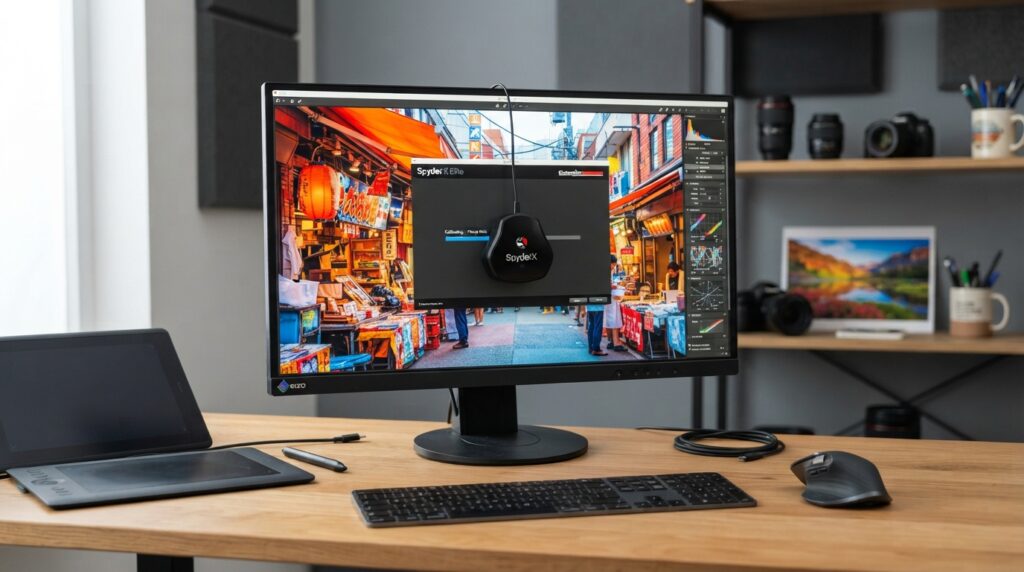
If color accuracy affects paid photo, video, design, or print work, a colorimeter is the dependable next step beyond visual tuning. It measures screen output against known RGB patches.
Repeatable creative work benefits from measured calibration and profiling. The process helps a monitor show known colors more consistently across compatible software.
What a colorimeter measures
A colorimeter reads light from a display while known color patches appear on screen. Software uses those readings to assess the monitor’s behavior.
DeltaE describes the difference between a target color and the displayed color. The dE00 method is a more accurate modern measure of that difference.
After calibration, an ICC profile describes the monitor’s gamut, white point, and tone response. ICC files commonly use .icc or .icm extensions.
When profiling helps creative work
Photo, video, design, and print workflows need repeatable color when images move between screens or output devices. A profile helps compatible software interpret the monitor’s color behavior.
A profile describes the display; it does not fix every app’s color output. It also cannot make an inaccurate screen physically reproduce colors beyond its gamut.
For a computer monitor, use this measurement sequence:
- Choose a target for the work.
- Set the monitor’s picture mode.
- Display known color patches.
- Measure the patches with a colorimeter.
- Save and use the resulting profile in compatible software.
A phone reading is not the same as installing a usable ICC profile on a computer monitor. Phones do not all support a system-wide profile workflow, and monitor profiles should match the monitor’s current mode.
Use an ICC profile only in software that supports color management, and verify that the profile matches the display’s current mode.
Can Calibration Fix Dead Pixels or Burn-In?
Calibration can change color or brightness settings, but it cannot repair a dead pixel or permanent burn-in. Dead pixels, stuck subpixels, and permanent OLED burn-in are physical display problems.
A stuck pixel or lasting image is not just a color setting that needs adjustment. A setting change may alter the screen’s overall look, but it cannot repair damaged display hardware.
| Issue | What it can look like | Can calibration repair it? |
|---|---|---|
| Dead pixel | A fixed black dot | No |
| Stuck subpixel | A fixed bright or colored dot | No |
| Permanent OLED burn-in | A lasting ghost image or uneven area | No |
Check whether the mark appears across different apps and backgrounds. A single image may contain an artifact that looks like a screen defect.
If a defect remains visible across apps and after a restart, stop changing color settings and arrange a hardware check.
For a Galaxy touchscreen that still misbehaves after basic troubleshooting, Samsung Members diagnostics can test the touchscreen. That check can help separate a touch problem from an image or color issue.
Persistent marks deserve a hardware check, especially when they remain in the same place after a restart. Avoid repeated setting changes when the symptom stays fixed.
Conclusion
For everyday use, a comfortable and consistent screen is a sensible goal, even without laboratory calibration. Built-in display settings can help us find a mode that suits our eyes and usual room light.
For creative work that depends on repeatable color, a colorimeter and a suitable profile offer a stronger basis than visual tuning. The phone’s own screen may still be useful for everyday checks, but it should not replace measured monitor work.
Open your phone’s display settings, choose a familiar color mode, and compare a photo you know well.