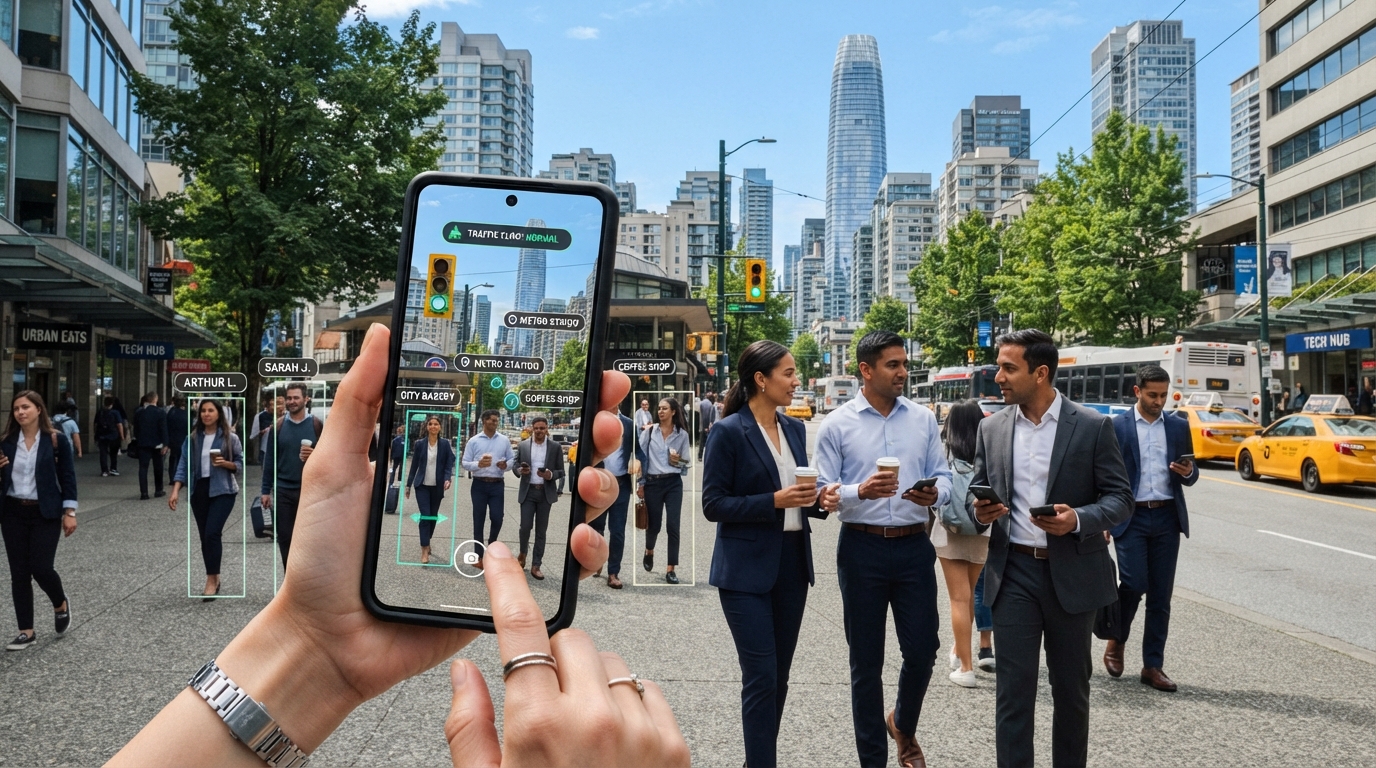
A phone can turn one camera capture into either a cleaner photograph or a useful decision about what the scene contains. Its sensor records only one color at each pixel, so demosaicing reconstructs a full red, green, and blue value at each pixel from the color-filter samples captured by the sensor.
Mobile Image Processing Algorithms help applications enhance photos, scan documents, and understand scenes. These features shape user expectations because people expect useful results without long waits or excessive battery use. The right choice depends on whether an app changes pixels, interprets them, or does both.
Key Takeaways
- Choose methods based on the app’s desired output, not a trend.
- Single-image corrections suit targeted changes to one capture.
- Multiple frames can improve detail when the scene aligns well.
- Computer vision returns labels, locations, masks, or other structured results.
- Test quality, speed, and memory use on real target devices.
What Do Mobile Image Processing Algorithms Do on a Phone?
A phone camera has far less room for large optics than a DSLR, so software has to make more of the available light and data. Small sensors collect less light, which can make images noisier, while high pixel counts increase the work needed for each image.
Mobile camera sensors are roughly 5×4 mm, compared with 36×24 mm for a full-frame DSLR sensor. A small aperture can limit light collection by about two orders of magnitude compared with a typical DSLR. Mobile image processing algorithms in 2021 already had to balance small sensors, battery limits, and rising pixel counts. Current apps also use neural networks.
Set speed and power limits before choosing a method, because a slower result can fail the app’s purpose.
A phone must also return results quickly enough to fit the way people use its applications. A high-resolution capture holds more data, and processing every pixel takes time and energy. CPU, GPU, and DSP hardware can divide image-processing workloads, but the app still needs a suitable plan for its target phones.
Developers can also split some work between a phone and a server. MIT researchers described a method for mobile photo edits that reported up to 98.5% less bandwidth, 85% less power use, and time savings of 50–70%. The MIT mobile image-editing study focused on style changes, not edits that alter image content.
For broader advice on device slowdowns, our smartphone performance guide explains how background activity can compete for memory and CPU time. Treat the target device, lighting, and response-time expectation as requirements before selecting an algorithm.
How Does a Phone Camera Pipeline Turn Sensor Data Into a Photo?
The image signal processor transforms sensor samples through a sequence of corrections before an app receives a finished photo. Each stage changes the data for a reason, from fixing sensor offsets to preparing colors for a screen.
A Bayer color filter array records one color sample at each pixel, usually red, green, or blue. Demosaicing estimates the missing color channels around each sample to create RGB pixels. Because each sensor has its own color response, camera calibration helps keep the rendered image close to the intended colors.
From raw samples to full-color pixels
Raw sensor values include more than the light from the scene. Black-level correction subtracts the sensor’s baseline signal, which helps prevent dark areas from carrying an unwanted offset. Demosaicing then fills in the missing red, green, or blue values at each location.
This interpolation affects fine edges and color detail. The camera’s processing algorithms must estimate missing values without turning sharp boundaries into colored fringes. The resulting RGB pixels can then move through later color and tone steps.
White balance, color correction, and tone
White balance changes channel gains to account for the color of the light. A white object under warm indoor lighting should not appear strongly orange after correction. Color correction uses a matrix to map the sensor’s response toward a chosen color space.
Tone mapping adjusts brightness and contrast for display. Gamma correction changes how pixel values represent brightness, so the image looks suitable on a screen. These operations shape image enhancement while retaining the scene’s key color and light relationships.
Sharpening and compression at the output
Edge enhancement can make details look clearer, though strong sharpening may create halos around high-contrast edges. The camera then encodes the processed image, often as a JPEG file. Compression reduces file size by discarding some image information.
These stages make the pipeline easier to inspect and test:
| Stage | Input | Operation | Output |
|---|---|---|---|
| Black-level correction | Raw sensor values | Subtract black level | Normalized raw data |
| Demosaicing | Bayer samples | Interpolate missing color channels | RGB pixels |
| Color and tone | Sensor RGB values | White balance, matrix correction, gamma mapping | Display-oriented color |
| Compression | Processed image | JPEG encoding | Compressed image |
Keep the order explicit in the pipeline because an early sensor error can affect every later color and detail decision.
Which Single-Image Enhancements Improve a Photo?
A single-image enhancement is the simplest fit when the app has one capture and needs a targeted correction rather than information from extra frames. Separate jobs call for separate controls: white balance corrects color casts, while tone mapping adjusts brightness and contrast.
Color calibration can use a 3×3 matrix fitted to measurements from the 24-patch ColorChecker. White balance changes channel gains to reduce a color cast. Denoising suppresses grain, while edge enhancement makes boundaries appear sharper. A single-image denoiser can also erase fine texture as it removes noise.
A correction that looks clean at a small preview may hide a problem at full size. Check the image for these common signs:
- A neutral object still looks tinted.
- Highlights or shadows lose visible detail.
- Sharpening creates bright halos around edges.
- Saturation makes colors look unnatural.
White balance and color calibration affect the whole scene, while tone mapping can change how light and shadow read. A light hand is often safer than forcing every image toward the same look. Image processing should preserve the scene’s useful details, not just make the preview seem brighter.
Compare the corrected image with the original at both full size and the screen size where users will view it.
How Does Burst Photography Reduce Noise and Recover Detail?
A short burst gives an app several observations of the same scene instead of asking one noisy frame to carry the whole result. Several captures can reveal detail that is unclear in a single image, provided the app can align them before fusion.
Multi-frame noise reduction combines short-interval captures to reduce noise. Alignment compensates for global camera motion, such as small hand jitters. Moving objects can still appear as ghosts when the app fuses frames that show them in different positions.
After alignment, an app can combine the frames for several useful outcomes:
- Low-light noise reduction.
- Scenes with bright highlights and dark shadows.
- Higher-detail crops.
- Captures where the scene stays still enough to align.
High-dynamic-range rendering uses multiple exposures to preserve information in bright and dark areas. Super-resolution methods can use slightly shifted captures to add detail beyond one frame’s sampling. Both depend on suitable alignment and scene content.
Camera movement is often easier to correct than subject movement. A parked car may align well across a burst, while a person walking through the scene may not. Prefer a single capture when subject motion makes a clean merge less reliable than a sharp frame.
Which Classical Image Processing Algorithms Solve Common Tasks?
Classical methods remain useful when a task has a clear mathematical structure and a predictable output. Known patterns such as edges, noise, and contrast can often be handled with signal processing rather than a trained model.
A Gaussian filter smooths local intensity changes, which reduces some noise but can blur edges. Bilateral filtering considers both distance and intensity, helping preserve boundaries during denoising. Choose an edge-preserving method when a simple blur removes details the app needs.
Denoising while preserving edges
A Gaussian filter gives nearby pixels more influence when averaging a region. This makes it simple and fast for basic smoothing. Its weakness appears near an edge, where pixels from two different areas can blend together.
Bilateral filtering gives less weight to pixels that differ greatly in intensity, even when they sit nearby. It can retain strong edges while reducing noise, though it costs more processing work than a basic blur. The best choice depends on whether speed or edge detail matters more.
Finding boundaries and geometric shapes
Sobel filters estimate directional gradients to create an edge map. Noise can create extra responses, so a raw Sobel result may need smoothing or a threshold. Canny uses multiple detection stages and thresholds to find cleaner edges.
The Hough transform votes for likely geometric parameters. It can find lines or circles even when parts of a boundary are missing. A wider search over possible shapes increases its computational work.
Adjusting contrast and brightness
Histogram equalization changes contrast by spreading pixel values across a wider range. It can reveal detail in a flat image, but a global adjustment may also make some regions look harsh. Classical computer vision methods are useful when their output can be checked against the task.
| Method | Main task | What it responds to | Main tradeoff |
|---|---|---|---|
| Gaussian filter | Smoothing | Local intensity variation | Can blur edges |
| Bilateral filter | Denoising | Spatial and intensity similarity | Higher cost than a basic blur |
| Sobel | Edge map | Directional gradients | Sensitive to noise |
| Canny | Edge map | Gradients with multiple detection stages | Needs thresholds |
| Hough transform | Line or circle detection | Votes for geometric parameters | Search space increases work |
Choose a filter by the failure it must avoid, not only by how clean its output looks.
When Should an App Use Neural Networks for Image Enhancement?
A learned model is worth considering when a fixed filter cannot capture the visual patterns the app needs to restore or recognize. Training examples teach neural networks to spot patterns in image data, including textures that simple rules may miss.
Convolutional neural networks process local image patterns, such as nearby edges and textures. A vision transformer uses attention to relate information across more distant image regions. Model quality depends on the task and training data, not the architecture name alone.
Learned methods can support classification, denoising, and learned upscaling. A denoiser may restore texture from a grainy image, while a classifier can assign a scene label. These outputs depend on the patterns represented in training examples.
Neural networks also bring costs. An app must load a model, allocate memory, and run inference within its response-time and power limits. Deep learning is most useful when the desired result is hard to describe with a short set of fixed rules.
A convolutional neural model may suit work driven by local patterns. A vision transformer may help when broad context matters, but that does not make it the better choice in every app. Validate a model on images that reflect the lighting, subjects, and devices it will meet after release.
How Does Computer Vision Find Objects and Scene Features?
Computer vision identifies what is present in an image and returns structured information that an app can act on. Different tasks produce different results, such as labels, object locations, masks, body keypoints, or recognized text.
Object detection returns locations and labels for objects. Image classification assigns a label to an image or region, while segmentation assigns pixels to regions or individual instances. Choose the output the app needs before choosing its model.
Pose estimation identifies keypoints or body structure, and optical character recognition converts visible text into machine-readable characters. Scene recognition can identify broader settings, such as a kitchen or street. These forms of pattern recognition help an application turn pixels into actions.
Common outputs include:
- Detection for object boxes and labels.
- Segmentation for object or region masks.
- Pose estimation for keypoints.
- OCR for text.
A document-scanning feature may combine edge detection, perspective correction, and text recognition rather than rely on one model. A mask can isolate a page, while geometric methods can straighten its corners. The app then reads the text after the page appears flat.
Some systems use models such as Faster R-CNN for object detection or Mask R-CNN for segmentation. Model choice should follow the needed output and phone limits, not a list of popular names. Choose the output the app needs, such as a label, mask, keypoint, or text string, before selecting a model.
How Can an App Analyze Camera Frames in Real Time?
A real-time analyzer needs to finish its work quickly enough that queued camera frames do not pile up. Fresh frames matter for live guidance, where an old result can point to a subject that has already moved.
CameraX ImageAnalysis supports YUV_420_888 by default and RGBA_8888 as an optional format. An app can request a resolution or an aspect ratio, but not both, and device capabilities can change the actual output. Choose the queue policy with care because it affects both freshness and camera use.

STRATEGY_KEEP_ONLY_LATEST replaces the buffered frame with a newer one while analysis runs. STRATEGY_BLOCK_PRODUCER can block bound use cases if its image queue fills, including preview when it shares the camera device. These behaviors shape the user experience when an analyzer falls behind.
CameraX gives example analysis limits of under 16 ms at 60 frames per second and under 32 ms at 30 frames per second. These are useful timing targets, not a guarantee that every model will meet them. Test the full path from frame arrival through result delivery.
Each captured camera frame passed to analysis arrives through an ImageProxy. Close it with ImageProxy.close() after analysis so the camera can reuse its data. Release every ImageProxy on every processing path, including error and early-return paths.
How Do Multiple Cameras and Sensors Improve Scene Understanding?
A second camera or motion sensor can add scene information that a single image cannot provide by itself. More measurements can help an app estimate distance, field of view, or device movement.
Multiple cameras may show overlapping views of the same scene. A wide camera can capture more of the surroundings, while a camera with a narrower field of view can show a zoomed view. Fused measurements become less trustworthy when camera timing or calibration does not match.
Combining views from more than one camera
Overlapping camera views can support depth estimation because the same object appears in different positions across the images. The app can compare those positions to estimate how far away the object sits. The cameras need a known relationship for that estimate to make sense.
Different fields of view can also help an app switch between broad scene context and closer detail. The camera pair must still capture compatible views and timing. A poor match can make a fused result less useful than one clear camera image.
Using motion sensors to stabilize interpretation
Accelerometers and gyroscopes measure device movement. Their readings can help estimate camera motion between images, which supports a steadier view of the scene. Motion data can also help an app tell phone movement from movement within the scene.
These sensors do not describe the whole scene on their own. Their readings need to line up with camera frames in time. A delay can lead the app to assign a movement measurement to the wrong image.
Calibrating cameras before combining measurements
Camera calibration relates image coordinates to camera geometry. It helps a system interpret where a point in an image sits relative to the camera. That relationship matters when two cameras contribute to one depth or position estimate.
Lens choice, camera placement, and sensor setup can affect calibration. Recheck calibration whenever camera placement, lens selection, or the device’s sensor configuration changes.
How Can We Reduce Memory Use and Rendering Cost?
A display rarely needs every pixel of a full-resolution capture, so loading only what the interface can show can save memory and work. Display-sized images often give a better fit for a small view than full sensor resolution.
Android recommends downsampling bitmaps to match their UI container rather than loading the full-resolution image. Changing an opaque Android bitmap from ARGB_8888 to RGB_565 reduces its memory footprint by 50%. RGB_565 does not keep alpha transparency and has lower color precision.
RGB_565 can suit opaque content, such as a photo shown without transparent pixels. It can show visible steps in smooth gradients because it stores less color information. Images with transparent edges need an alpha-capable format instead.
Rendering speed is separate from camera analysis throughput. Android Profile GPU Rendering uses a 16.67 ms frame benchmark for 60 frames per second and flags frames that exceed it. A screen can still stutter when image analysis keeps pace but drawing takes too long.
Downsampling reduces the number of pixels that the interface must store and display. The right size depends on the view, and a zoom feature may need a larger image than a thumbnail. Check image quality again after downsampling or changing pixel format, especially in smooth gradients and translucent graphics.
Which Mobile Processor Should Run Each Image Task?
The right processor is the one that supports the workload’s operations within the app’s speed and energy limits. Workload fit matters more than the processor label, because each unit handles different kinds of image work.
CPUs handle general-purpose code and control flow. GPUs process many pixel operations in parallel, while DSPs suit signal-processing work. Specialized accelerators can run a task efficiently only when the device and software support its operations.
Samsung’s Exynos 2600 Visual Perception System supports real-time computer-vision processing in ultra-high-resolution, 60 fps scenarios. Samsung reports more than a 50% power-efficiency improvement across multiple camera solutions compared with the previous generation. Those results describe that product, not every phone.
The main processor roles can be compared this way:
| Processor | Typical strength | Example image workload | Constraint to check |
|---|---|---|---|
| CPU | Flexible control flow | Orchestration and light processing | Sustained load competes with app work |
| GPU | Parallel pixel operations | Image transforms and neural inference | Competes with rendering and power budget |
| DSP | Signal-processing operations | Filtering and camera signal work | Supported operations vary by device |
| NPU or vision accelerator | Neural inference | Detection or enhancement | Model operators must be supported |
Our mobile processor architecture guide explains how these units work together and why heat can affect sustained performance. Benchmark on the actual device classes the app supports because accelerator availability does not guarantee an identical execution path.
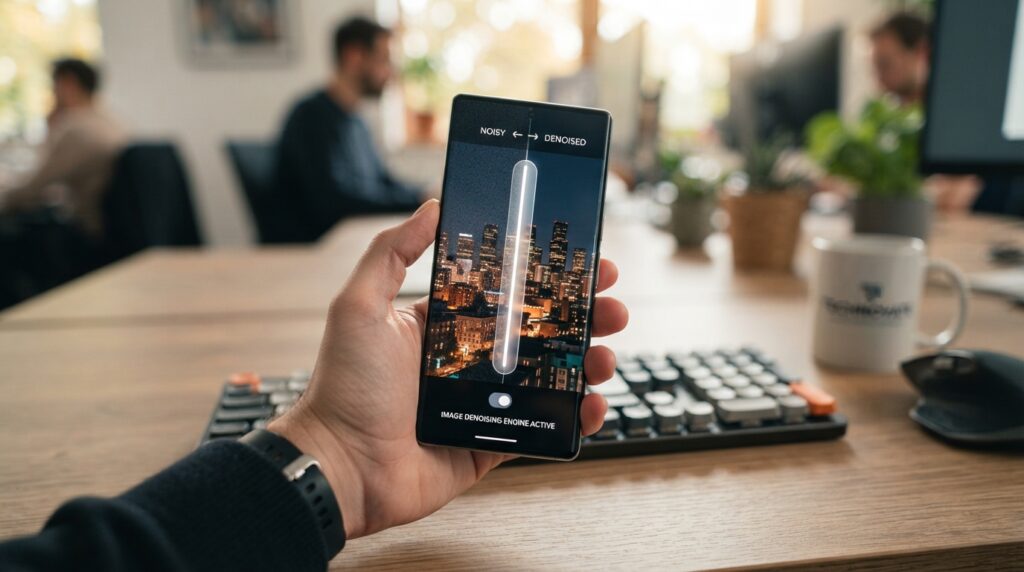
What Makes an On-Device Denoising Model Practical?
A practical denoiser must restore detail well enough while finishing on the target hardware within the app’s latency budget. Quality, speed, and fit all matter when we judge an on-device model.
LiteDenoiseNet provides one case study. Its held-out test set reached 37.58 dB PSNR and 0.9098 SSIM at full resolution of 2432×3200. Its validation results at that resolution were 37.66 dB PSNR and 0.9278 SSIM. Test and validation scores describe different image sets and should stay distinct.
Restoration quality on held-out images
A held-out set helps show how a model handles images it did not use for training. PSNR measures pixel-level reconstruction error, while SSIM compares structural similarity. Neither number alone reveals every texture or color artifact a person may notice.
The LiteDenoiseNet test result used 2432×3200 images. Its validation figures came from a separate evaluation set at the same full resolution. Keeping those conditions visible makes the results easier to interpret.
Inference time on mobile NPUs
At 1088×1920 Full HD, LiteDenoiseNet latency was 34.0 ms on a MediaTek Dimensity 9500 NPU. It took 46.1 ms on a Qualcomm Snapdragon 8 Elite NPU under the stated test conditions. The two results show why device-specific timing matters.
NPU-compatible operations enabled dedicated NPU execution up to 3.88× faster than the integrated mobile GPU. A model that falls back to another processor may have very different timing. Apps need to test the actual execution path.
Model size and hardware compatibility
The LiteDenoiseNet student model has 1.96 million parameters. Knowledge distillation at α=0.9 recovered 99.8% of teacher restoration quality. A smaller model can ease deployment, but operation support still affects where it runs.
Operator compatibility matters because a model may use steps that a phone’s NPU cannot execute. Unsupported operations can force a fallback path and change speed or energy use. A benchmark on one NPU does not guarantee the same result on another device.
Compare quality and latency using the same input dimensions and device conditions before deciding whether a model is deployable.
How Should We Build and Validate an Image Feature?
Start by checking that the feature works on representative images before investing in a polished mobile interface. A small prototype lets us test the core image processing without first building every screen and control.
A practical workflow can start with stored images on a PC, then batch-test hundreds of real images to tune parameters. Testing many varied images early can reveal failures that one attractive demo hides. A WLAN-connected phone demonstrator can later test camera interaction and user experience.
One example workflow uses Python for a functional prototype, C++ and OpenCV for image processing, and C# with .NET MAUI for apps on Android and iOS. This is one workable stack, not a requirement; teams can choose tools that fit their skills and platform needs.
Build the feature in these steps:
- Define the image input and desired output.
- Build a low-effort prototype with stored images.
- Batch-test representative images and tune parameters.
- Test camera interaction and user experience on a phone.
- Optimize and validate the on-device implementation.
Use the same core test images as the prototype moves onto a phone. A WLAN demonstrator can help connect a PC prototype with a mobile camera before the full app is ready. Keep a repeatable validation set so later changes can be checked against the same difficult cases.
Which Mobile Image APIs and Frameworks Fit the Job?
Choose a framework by the image operation and hardware path the app actually needs, rather than by its name alone. Conventional transforms, camera input, and on-device machine learning can call for different tools.
OpenCV supports conventional image operations, while TensorFlow Lite supports cross-platform on-device inference. Core ML provides machine-learning tools for Apple platforms. The supported operations and target operating system determine whether a framework fits.
Core Image RAW 9 combines demosaicing and denoising in a tiled Core ML model that runs on Apple Neural Engine cores. It supports hundreds of camera models across iOS, iPadOS, macOS, and visionOS 27. Operating-system updates can expand that camera support.
CIRAWFilter exposes 20 calibrated editing properties. RAW 9 handles color-noise reduction automatically, so colorNoiseReductionAmount has no effect. The property list and actual behavior matter when we build editing controls.
The scaleFactor property can reduce rendering work for a smaller display size. For interactive RAW editing, Apple recommends one CIContext per view with cacheIntermediates enabled. These choices can affect rendering behavior without changing which image edits the app offers.
OpenCV, TensorFlow Lite, and Core ML each serve different application needs. A cross-platform inference model may favor TensorFlow Lite, while an Apple-only feature may fit Core ML. Verify the supported API behavior on the minimum operating-system version the app intends to serve.
How Do We Evaluate Quality Before Shipping?
A result is ready to ship only when its image quality and runtime behavior hold up on the devices and scenes users will encounter. Real-world testing should pair visual review with measures of speed, memory, and output quality.
PSNR measures pixel-level reconstruction error, while SSIM measures structural similarity. Latency, memory use, and power draw describe different deployment limits. No single score captures both image quality and app performance.
| Measure | What it captures | What it can miss | How to use it |
|---|---|---|---|
| PSNR | Pixel-level reconstruction error | Perceptual preference | Compare against a reference image |
| SSIM | Structural similarity | All scene-specific artifacts | Inspect alongside visual review |
| Latency | Time to produce a result | Battery and memory use | Measure on target devices |
| Peak memory | Working storage demand | Image quality | Test the largest supported input |
A release check should cover these cases:
- Bright and dim scenes.
- Static and moving subjects.
- Supported camera and screen sizes.
- Successful output after repeated runs.
Pixel metrics can favor a result that looks less pleasing to people, while visual review can miss slowdowns or memory spikes. Run both kinds of checks on supported phones and image sizes. Keep failures from real devices in the test set so each release can be checked against them.
Ship only after both the image result and the app’s runtime behavior hold up on the devices people use.
Conclusion
Strong mobile imaging comes from matching the method to the job and the device. An app that edits photos needs different outputs from one that detects objects or reads text.
Our next step can be simple: prototype the most important task on representative images, then measure quality and latency on a real phone. Start with one representative feature and test its result on the phone users will actually carry.