
A phone can feel slow even when its processor is capable if its apps compete for limited RAM. Mobile Memory Management affects how quickly a smartphone responds and how well apps stay ready. We explain what happens inside the device and how users and app teams can respond.
Everyday users need practical ways to tell a memory problem from a storage problem. App teams need sound measurements and tests before changing code or memory policies. We cover both needs, without treating every slowdown as the same issue.
For users, the right step may be a careful check of app data or a closer look at an app that keeps restarting. For developers, it may mean measuring RAM use under a realistic workload. Better performance starts with identifying whether the problem is app memory, background processes, or device storage.
Key Takeaways
- RAM is shared by active and background work.
- Android can end a cached process when it needs space.
- App heap size and total app footprint are different measures.
- Clearing app data affects storage, not RAM directly.
- Developers should compare repeatable tests on the same device.
What Is Mobile Memory Management?
Mobile Memory Management is the way a phone’s operating system and app runtime share RAM, keep useful work available, and reclaim space when needed. Memory reclamation is the recovery of RAM by freeing, compressing, or terminating memory-holding work.
RAM is a shared, finite working area for the operating system and running apps. Mobile operating systems decide which processes get memory and which work can wait. The runtime manages objects created by an app while it runs.
The central tradeoff is keeping enough work ready to resume without letting background use crowd out active tasks.
On Android, apps written in Java or Kotlin run on Android Runtime, or ART. ART handles managed objects, while the operating system manages app processes and device-wide RAM use.
These roles affect more than speed. A phone that keeps useful work ready can feel responsive, but excess work can force repeated reloads. Memory pressure can also increase processing and energy costs.
Good memory handling supports app reliability, too. An app that allocates too much may fail, and a process may end when the system needs room. The same design must serve the app and the wider device.
For users, that means an app closing or reopening does not always point to a broken phone. For app teams, it means a local change can affect other applications sharing the same device.
How Do Mobile Operating Systems Allocate RAM?
Android gives each app process a managed heap whose limit depends on the device’s overall RAM. The heap is the app’s space for managed objects, not a full map of every byte the process uses.
An allocation beyond the app’s heap limit can cause an OutOfMemoryError. The ceiling varies by device, so an app may behave differently across phones with different RAM capacity.
App heaps and allocation limits
When an app creates an object, ART tracks it in the managed heap. The app can request more space as it works, but the operating system sets a limit.
This logical heap is only one part of an app process. Native code, graphics, stacks, and other system resources can add to its physical footprint.
Teams should treat a heap limit as an allocation boundary, not a promise of total RAM available to the app. An app may reach its limit even when the phone still has some free RAM.
Shared pages and measuring a footprint
Android starts app processes by forking them from Zygote, a process that holds common framework resources. Forking lets apps share some framework pages instead of loading separate copies.
Zygote’s shared framework pages help explain why a process’s full memory view can include resources used by other processes.
RSS counts every resident page mapped by a process, including shared pages. PSS apportions shared pages across processes, giving each process a proportional share rather than charging every app for the full page.
That makes PSS more useful when comparing an app’s contribution to overall use. Counting the number of open applications alone does not show total RAM use; each app has a different footprint and shares different resources.
Treat an OutOfMemoryError as an allocation-limit problem to investigate, not proof that the phone’s storage is full.
How Does Android Manage Background Apps?
Leaving an Android app does not usually quit its process immediately. Android often keeps the app as a cached process so it can reopen more quickly.
A cached process can disappear when Android needs RAM for active work. The system balances quick returns with the needs of foreground applications.
What happens after an app leaves the screen
When we switch to another app, the first app may stop showing on screen while its process remains in memory. Its saved state can help the app restore the last view when we return.
Keeping a process ready can save time, but Android does not promise that every background app will stay alive. The available RAM and the system’s current needs shape what remains.
Why a cached process can disappear
A cached process is less important to immediate work than the app on screen. If RAM runs low, Android can kill cached processes to make room.
The app may then start a new process when we open it again. The app should restore useful state rather than depend on its old process staying alive.
- The app is visible on screen.
- We switch away, and the app moves to the background.
- Its process may remain cached for a faster return.
- The system may kill it, then recreate it when we return.
Save important user work as the app runs, because the operating system can end a cached process at any time.
What Happens When a Mobile Device Runs Low on Memory?
When active apps need more RAM, the operating system must reclaim space or change how less-used data is held. Each method trades available memory against the time needed to resume work.
Android may free pages or end background processes before using swap. Some systems also compress memory or use disk-backed swap, but these approaches are not universal.
Reclaiming RAM without swap
The system can free memory that apps no longer need, including pages that can be recreated later. It can also end background processes, giving active work more RAM.
Ending a process can make an app take longer to return. The app must start again and restore its state, so memory recovery can come with a visible delay.
When compressed or disk-backed swap helps
ZRAM and ZSWAP hold compressed swap data in RAM. Compression can make data take less space, but compressing and decompressing it costs processing time.
Disk-backed swap stores less-used data on secondary storage and can make more RAM available. Accessing flash storage adds latency, and frequent writes raise concerns about storage wear.
Swapping is not always enabled, and it is not always faster than ending a process. The right choice depends on the cost of compression, storage access, and restarting the app.
| Method | Where data is held | How RAM is recovered | Main tradeoff |
|---|---|---|---|
| Process termination | Process data ends | Process memory is released | App may need a fresh launch |
| ZRAM or ZSWAP | Compressed data in RAM | Compression reduces data size | Compression uses processing time |
| Disk-backed swap | Secondary storage | Less-used data leaves RAM | Storage access adds latency |
Marvin was a research prototype for memory management. Its evaluation reported over twice as many concurrent apps as Android and memory reclamation over 60 times faster than Android using a Linux swap file under memory pressure.
Those prototype results do not predict how current phones perform. Check whether a proposed swap design reduces the delay that matters to users, not just the number of apps it can retain.
Why Do Some Apps Relaunch Instead of Resume?
An app can matter to a user yet still be removed if the system judges another process more recently used. Recency alone can miss how often a person opens an app.
A policy based on likely reuse can keep frequently opened apps ready. AMMS uses past app-use sequences to estimate which app may launch next.
A least-recently-used policy favors apps used most recently. An app opened many times earlier may rank below one used just once, even if the first app is more important to the user’s routine.
AMMS applies a long short-term memory model, or LSTM, to usage patterns. It looks at the order of previous app launches and estimates what the user may open next.
That prediction can inform which process stays in memory and which one is removed. It does not remove the need to manage RAM, and the result depends on how closely past use predicts future use.
Network activity and user behavior can also affect app use. A person may change routines, or a network delay may alter the order and timing of launches.
An evaluation using actual smartphone usage records reported an approximately 17% reduction in average application execution time for AMMS. That result reflects the tested records and conditions, not a guaranteed gain for other devices or apps.
Treat usage prediction as a policy choice to evaluate against real switching patterns, not as a universal memory-management fix.
How Can Garbage Collection Affect App Performance?
Garbage collection can free objects an app no longer uses, but the work can interrupt the app while it runs. ART reclaims objects that the app can no longer reach.
A pause during intensive work can push a frame beyond the 16-millisecond threshold for smooth rendering. The runtime decides when collection happens; app code does not choose its exact moment.
Why ART collects objects
Apps create objects as they handle screens, data, and user actions. When no active reference can reach an object, ART can reclaim its memory.
The app cannot simply name a precise collection time and expect ART to follow it. Collection depends on runtime needs, including allocation and memory pressure.
A pause is not the same as a permanent memory leak. Collection reclaims unreachable objects, while a leak occurs when unneeded objects remain reachable.
How allocation bursts interrupt a frame
An animation loop may run work for every frame. If that loop creates many short-lived objects, the app can trigger more collection work during a time-sensitive task.
Each frame has limited time for app code, drawing, and system work. A collection pause can delay the next frame, so motion may appear to stutter.
Unnecessary allocation in a loop can cost more than the size of one object suggests. Repeated creation adds up, especially when a screen updates often.
Inspect repeated allocations in time-sensitive loops before trying to force garbage collection yourself.
Which Memory Metrics Should Developers Track?
Choose a memory metric based on whether you need the full resident footprint, a proportional share, or private pages. No single figure answers every app-memory question.
An app’s Java or Kotlin heap is only one part of its total footprint. Native allocations, graphics, and shared pages can also affect RAM use.
| Metric | What it counts | Best use |
|---|---|---|
| RSS | All resident pages, including shared pages | View the full resident footprint |
| PSS | Resident pages with shared pages apportioned | Estimate a process’s proportional RAM share |
| USS | Private resident pages | See pages unique to one process |
RSS can make a process look large when it maps pages shared with other apps. PSS divides those pages among processes, while USS leaves shared pages out.
Choose based on the question. RSS helps show the full mapped resident set, PSS helps estimate an app’s share, and USS shows its private resident use.
- Record the device and app state.
- Capture a baseline measurement.
- Repeat the same interaction.
- Compare peaks and trends, not one sample.
One sample may capture a brief spike or a quiet moment. Repeated readings during the same task give a clearer view of sustained use and peaks.
Compare like-for-like measurements on the same device and workload before attributing a change to code.
How Do Android Studio Profiling Modes Differ?
A profileable build supports most common Android Studio profiling tasks, while heap dumps and allocation recording need a debuggable build. Choose the build that fits the question.
Profiling requires a test device running API level 29 or higher with Google Play, plus Android Gradle Plugin 7.3 or higher.

| Configuration | Supported work | Use when |
|---|---|---|
| Profileable | Most common profiling tasks | Routine performance and system profiling |
| Debuggable | Common tasks, allocation recording, heap dumps | Inspect Java or Kotlin allocations and heap objects |
Profileable apps for routine profiling
A profileable app lets teams run common profiling tasks without using a debuggable build. This setup suits routine checks of app behavior and performance.
Before starting, confirm that the device meets the Android version and Google Play requirements. The Android Gradle Plugin must also meet the stated version requirement.
Debuggable apps for deeper heap inspection
Recording Java or Kotlin allocations and capturing a heap dump require a debuggable app. These tools help inspect object creation and the objects held in memory.
A missing tool can reflect the build mode rather than a defect in app code. Confirm the device and build configuration before treating a missing profiler feature as an app defect.
How Can Teams Test Apps Under Memory Pressure?
A memory test is most useful when it reproduces the app’s actual foreground and background work. A realistic sequence shows whether the app survives the way people use it.
Repeat the same interaction before and after a change. That comparison can reveal new crashes, alerts, or relaunches.
Test more than one screen in isolation. A user may open an app, switch away, return, and repeat the cycle while other applications remain active.
Android’s stressapptest example runs for 20 seconds with a 990 MB limit. It creates a high-load condition, but that setting does not suit every device or test goal.
Android also provides TRIM_MEMORY_EVENTS on API level 16, Android 4.1, and higher. Memory callbacks can help teams observe how an app responds to system pressure.
- Set a low-memory device or test condition.
- Run the same interaction sequence.
- Watch for alerts, crashes, and relaunches.
- Repeat the test after a change.
Keep the task sequence consistent, including the time spent in the foreground and background. A test that changes its workload can hide whether a code change helped.
Run the same test before and after a change so a new crash or relaunch pattern has a clear comparison.
Which Coding Practices Reduce App Memory Use?
The most dependable memory improvements remove allocations or retained objects the app does not need. Small changes can help, but only when they address measured use.
Bound caches and release references when their work is finished. ART can reclaim managed objects after they become unreachable.
Limit short-lived allocations and oversized caches
A cache can speed up access, but an unlimited cache can grow as the app handles more data. Set a clear bound that fits the task and the device.
Repeated temporary objects in hot paths can add needless allocation work. Reuse data where that makes sense, and avoid creating objects in tight loops without a need.
Do not remove every allocation as a rule. Some objects make code easier to read and maintain, so focus on patterns that add pressure during real use.
Release references when work is finished
A reference can keep an object reachable after the screen that used it disappears. ART cannot reclaim that object while a live reference still points to it.
Detach listeners when their task ends, and tie resource lifetime to the work that needs it. A finished screen should not keep large data alive without a reason.
Use this review list to spot common risks:
- Each cache has a clear limit.
- Tight loops avoid needless temporary objects.
- Listeners detach when no longer needed.
- Large data is not retained after its task.
- Memory is rechecked under the same workload.
Re-measure after each change, since a smaller heap footprint is useful only if the same user task still works well.
How Can Android Users Clear App Data Safely?
Clear an Android app’s cache to remove temporary files, and clear its storage only when you intend to erase its saved data. These actions affect app data, not active RAM directly.
Clearing storage permanently deletes that app’s data, while clearing cache removes temporary data. Clearing storage is separate from removing the app itself.
After a cache clear, the app may open more slowly next time as it rebuilds temporary files. Saved information can remain after a cache clear.
Clearing storage can remove settings, saved files, and sign-in details held by the app. The exact data depends on how the app stores its content.
Use these steps to choose the least destructive action:
- Identify which app is using space.
- Clear its cache only to remove temporary data.
- Expect the app to open more slowly next time.
- Clear storage only if ready to erase its data and set it up again.
Storage cleanup can help when device storage is crowded, but it does not promise more RAM or a faster phone. For broader troubleshooting, our smartphone performance guide explains how to separate common causes.
Before clearing storage, confirm that any information you need is backed up or recoverable.
How Can iPhone Users Manage Storage Without Losing Data?
Open Settings > General > iPhone Storage to see the main categories taking up space on an iPhone. The storage view lists Apps, Photos, Messages, and System Data.
Offloading removes an app but keeps its documents and data; deleting removes both. System Data is generally managed by iOS, so users usually cannot clear it directly.
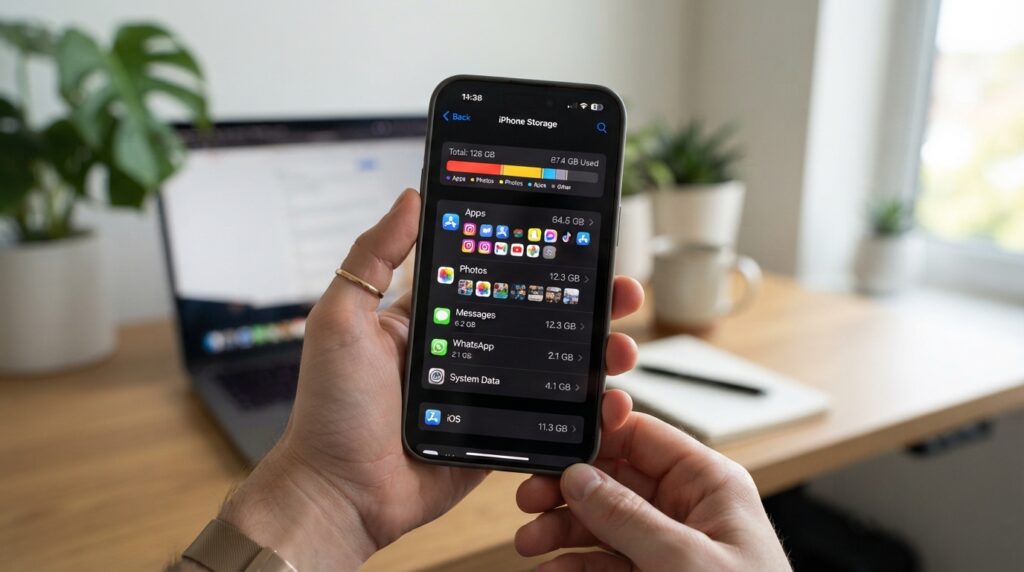
System Data can reach 20, 40, or even 60GB. Its size can change as the system handles files and other data, but there is no direct user control to clear it.
Offloading can remove an app that we use rarely while keeping its documents and data for a later reinstall. Deleting an app removes its documents and data as well.
Safari history cleanup has a wider effect than removing the list of visited pages. It also removes website cookies and permissions granted for location or notifications.
Choose the action that matches what you want to keep. Offloading suits an app we may need again, while deleting suits one whose data we no longer need.
Offload an app when you want to remove the app itself but keep its documents and data.
Should You Close Apps to Improve Performance?
Closing all your apps is not a reliable way to improve overall phone performance. Close one app when it stops responding, not as a routine cleanup habit.
Android users usually do not need to close apps, and Apple advises closing an iPhone app only when it is unresponsive.
Apps use resources and power when active or doing specific background work. The app switcher does not show a simple list of processes that should all be stopped.
Repeatedly closing and reopening apps can also make them start from scratch instead of returning to a ready state. That may add delay without fixing the cause of a slowdown.
Our phone performance troubleshooting guide covers why force-stopping is mainly useful for a stuck app.
Close or force-stop a specific app when it is unresponsive, then reopen it to check whether the problem has cleared.
How Do RAM, App Heaps, and Device Storage Differ?
RAM supports work happening now, while device storage keeps files and app data available after an app process ends. They serve different roles, so one cannot always fix a problem with the other.
An Android app heap is a bounded part of an app process’s memory, not the device’s full RAM. ZRAM uses a portion of RAM for compressed swap data.
RAM and the app heap
RAM holds active and cached working data for apps and the operating system. It changes as processes start, pause, and end.
The app heap is the allocation space ART manages for objects in an app. It is one part of the process’s memory, and its limit can differ from the phone’s total RAM.
Persistent storage and app data
Device storage keeps files and app data after a process ends. A process can disappear while saved documents, settings, and other persistent content remain.
That distinction matters when an app restarts but still has its saved information. The app process was temporary; the stored data can remain on the device.
| Resource | What it holds | What happens when the app process ends |
|---|---|---|
| RAM | Active and cached working data | Process memory can be released |
| App heap | Managed objects within a process | Heap ends with the process |
| Device storage | Files and app data | Saved content can remain |
Identify which resource is constrained before choosing a fix, since freeing storage does not automatically create more app heap.
How Should Teams Evaluate Memory Management Changes?
A memory change should be judged against a repeatable workload that reflects how the app is actually used. One benchmark cannot predict every mobile app’s results.
Keep the device, app sequence, and measurement method consistent when comparing a change with its baseline. Background activity and network conditions can alter results.
Control the mobile test conditions
Run tests on a known device and repeat the same app sequence. Control background activity as much as possible so another process does not change the memory pressure.
Mobile devices vary in RAM, hardware, and system behavior. GPS and network activity can also change from run to run, making performance results less predictable.
Record the workload and measurement method with each result. A comparison is useful only when the conditions are clear enough to repeat.
Interpret results by workload
Real Android apps include user actions, background services, and system interactions. DaCapo benchmarks test specific Java workloads, while microbenchmarks focus on small code tasks.
Those test types answer different questions. A microbenchmark may isolate a routine, but it cannot fully represent an app with several processes and network work.
ART garbage-collection overhead lower bounds ranged from 2% to 51% for a modestly sized heap across evaluated workloads. That wide range shows how strongly collection cost can depend on the task.
Keep the test device, app sequence, and measurement method consistent before comparing a new result with a baseline.
A test result is useful only when its workload matches the decision we need to make.
Conclusion
A responsive mobile experience depends on matching the fix to the resource that is actually under pressure. Memory, retained objects, and persistent storage need different responses.
Users can avoid erasing saved data when the issue is only temporary files. App teams can find avoidable allocations by measuring the same task before and after a code change.
Start by measuring the relevant app behavior on the device where the problem occurs, then make one change and test it again.