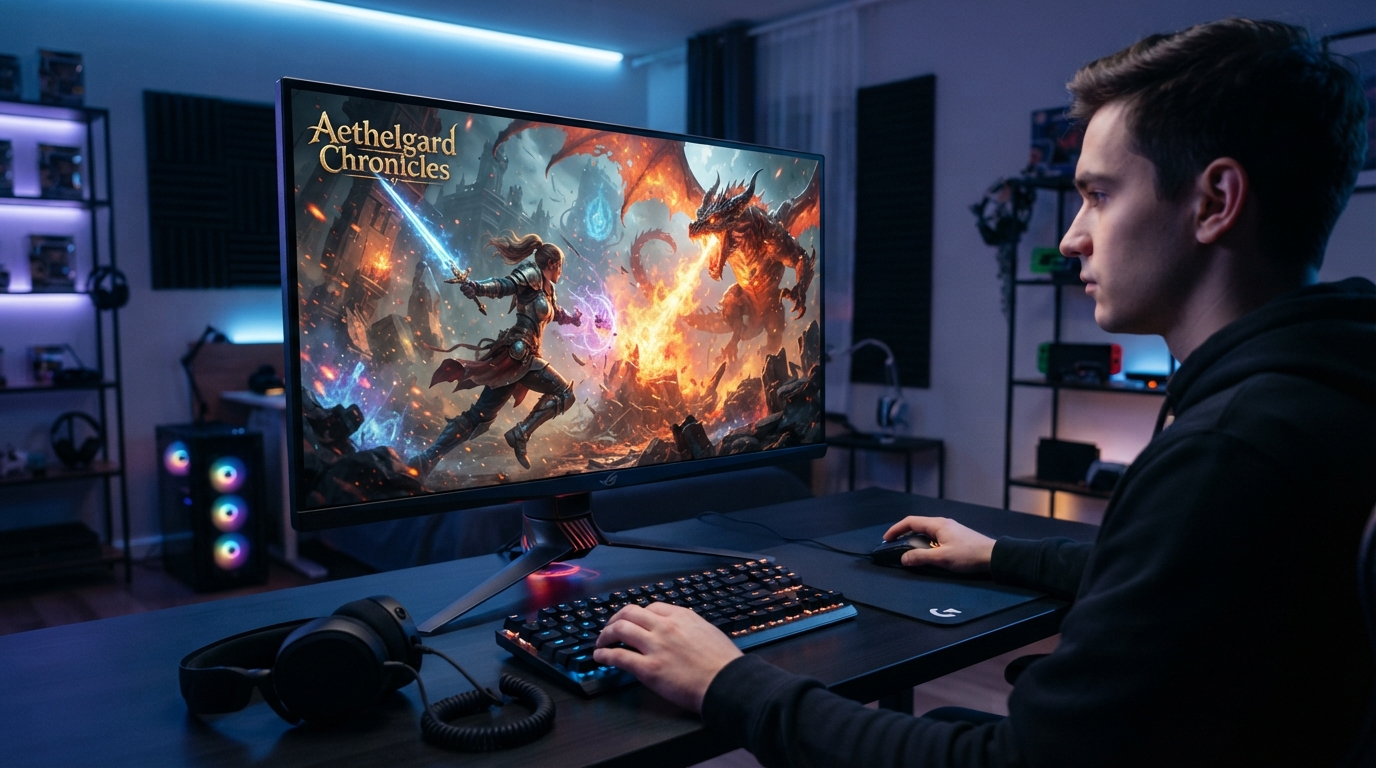
Adaptive refresh technology lets a compatible screen adjust its update timing as incoming frames change. Variable refresh rate (VRR) is a display behavior that adjusts refresh timing to match incoming frame cadence within the display’s supported range. Matching timing can make motion look smoother and reduce tearing when frame delivery changes, which helps during gaming and everyday screen use.
Screen refresh and source frame output are related but different measures. A display may update at a steady pace while a game sends frames at a changing pace. When those timings drift apart, motion can look rough, even when the picture is sharp. We’ll explain what the feature can improve, where its limits matter, and how to check support. The practical benefit is steadier motion when the screen and the device generating its frames stay in step.
Key Takeaways
- VRR adjusts screen timing to follow incoming frames within a supported range.
- Refresh rate describes the screen; frame rate describes the source.
- VRR can reduce tearing, but it cannot fix every motion flaw.
- Check monitor, graphics hardware, and connection support before enabling it.
- Pixel response and input lag also shape the gaming experience.
How Do Refresh Rate and Frame Rate Differ?
A 60Hz monitor refreshes 60 times per second, but the connected source can send frames at a different pace. Hz describes the monitor’s refresh rate, while FPS describes the frame rate from a PC, console, or other source.
A 60Hz monitor receiving 90 FPS can show parts of multiple frames at once, creating screen tearing. This happens when the display begins a refresh while the source has already started sending another frame.
Check both the display’s stated Hz and the game’s FPS before treating either number as a complete measure of motion quality.
Other motion flaws can look similar at first, but their causes differ. A quick check of the visible pattern can help us identify what is happening.
- Tearing: parts of two or more frames appear together.
- Stutter: motion looks uneven because frames repeat or arrive inconsistently.
- Judder: a repeated display pattern makes motion look uneven, often during film playback.
A frame rate higher than the monitor’s refresh rate does not mean every frame appears in full. The display may cut across frame changes, while repeated frames can make motion seem less fluid. The RTINGS refresh-rate explainer covers how those measurements affect motion.
Look at both numbers in the same scene, not just the monitor’s maximum rate. Check both the display’s stated Hz and the game’s FPS before treating either number as a complete measure of motion quality.
How Does Adaptive Refresh Rate Technology Work?
Adaptive-Sync works by letting a compatible display follow changes in the GPU’s frame output. Instead of a fixed schedule, the refresh cadence can shift as new frames arrive.
VRR only works inside the display’s supported refresh range. A useful VRR range matters because frame rates that fall outside it may no longer receive the same timing benefit.
Frame timing inside the VRR range
VESA Adaptive-Sync lets a display vary its refresh behavior in response to GPU frame output. The display can wait for a frame rather than forcing each one into a fixed refresh schedule.
That timing helps when a game’s output changes from moment to moment. If the frame rate moves within the supported range, the screen can adjust its refresh to keep pace.
A display’s range sets the limits of that behavior. If the frame rate falls below or rises above the range, the display cannot keep matching the source in the same way.
What VRR improves and leaves unchanged
Adaptive sync can reduce tearing and uneven motion by lining up display refresh with frame delivery. The result can look steadier in a scene where the GPU output shifts often.
It does not make every frame look clear. Slow pixel response can leave blur behind moving objects, even when refresh timing follows the source.
VRR also does not promise the lowest possible input lag. The display, game, and system still affect how quickly a control reaches the screen.
VESA Adaptive-Sync is a protocol for variable timing, not a promise that every display handles motion the same way. A broader supported range gives the display more room to follow changing output.
Is 60Hz or 144Hz Better for Everyday Use and Gaming?
For many people, 120Hz or 144Hz looks smoother than 60Hz, especially during fast scrolling or motion. When the device can supply enough frames, 144Hz generally looks smoother than 60Hz, while 60Hz still suits many players.
At 120Hz, the frame time is 8.33 ms, compared with 16.67 ms at 60Hz. A 120Hz monitor can also show smoother motion and less persistence blur, though pixel response time matters too.
| Refresh rate | Frame time | Practical context |
|---|---|---|
| 60Hz | 16.67ms | Still suitable for many uses |
| 120Hz | 8.33ms | Smoother motion than 60Hz |
| 144Hz | 6.94ms | Higher refresh option for gaming |
| 240Hz | 4.17ms | Benefits depend on the system and user |
Adaptive refresh rate technology at 120 Hz can vary its timing instead of holding at 120Hz, when the display supports VRR. That can help when a game sends frames at a changing pace.
Higher rates can cut the time tied to each refresh. At the screen’s midpoint, minimum input lag tied to frame time is half a frame: 8.33 ms at 60Hz and 4.17 ms at 120Hz.
Each rise in refresh rate can matter less than the last. The gap between 500Hz and 700Hz is harder to notice than the gap between 60Hz and 240Hz, and no exact rate works for everyone.
Two monitors at 240Hz can still respond very differently. The ASUS ROG Swift OLED PG32UCDM Gen3 measured 0.6 ms total response time, while the Dell SE2426HGS measured 7.1 ms. These measured response-time results show why refresh alone cannot describe motion clarity.
For everyday use, 120Hz generally makes scrolling and motion look smoother than 60Hz. A 60Hz refresh rate can still suit gaming, since response time and input lag vary by monitor.
Compare pixel response and input lag as well as Hz when judging two monitors.
Which Adaptive Sync Standards Work With Your Devices?
Adaptive-Sync, FreeSync, and G-SYNC are related approaches to variable refresh, but their compatibility depends on the display and graphics hardware. The name alone is not enough to confirm that a monitor and GPU will work together.
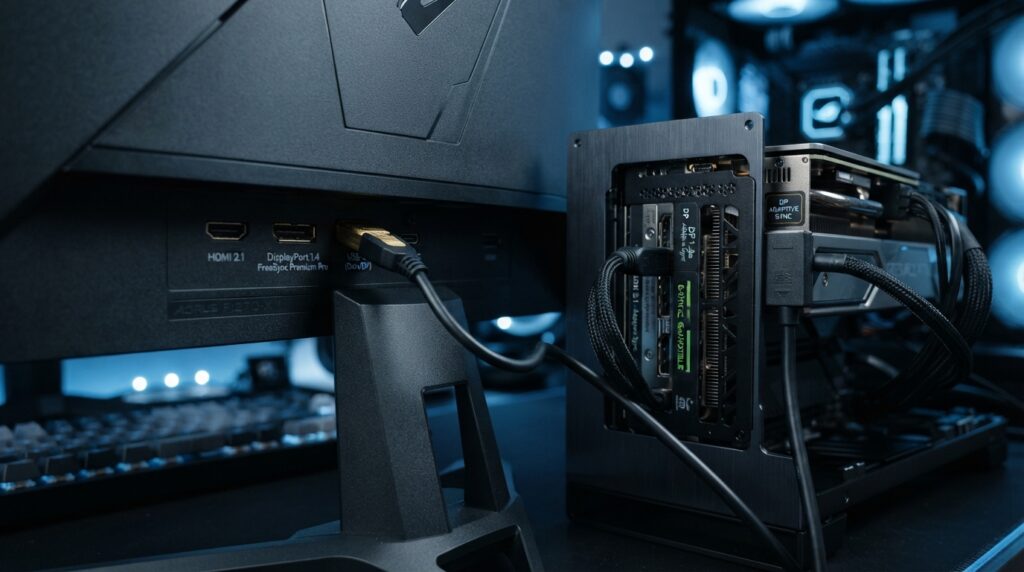
Check the exact display, graphics hardware, and connection for support. A sync badge does not guarantee that every feature works through every port.
Open standards and vendor implementations
VESA Adaptive-Sync is a VESA protocol for DisplayPort, while HDMI 2.1 includes Variable Refresh Rate. AMD FreeSync and NVIDIA G-SYNC are branded implementations that use variable refresh.
DisplayPort 1.2a formally introduced VESA Adaptive-Sync in 2014. HDMI 2.1 added its own VRR support, so the port and device versions matter.
| Name | Connection or basis | What to check |
|---|---|---|
| VESA Adaptive-Sync | DisplayPort | Display support |
| HDMI 2.1 VRR | HDMI 2.1 | Support on both connected devices |
| AMD FreeSync | DisplayPort Adaptive-Sync or HDMI VRR | Compatible FreeSync display and GPU |
| NVIDIA G-SYNC | NVIDIA implementation | Exact GPU and monitor support |
Apple ProMotion and Qualcomm Q-Sync are other variable-refresh technologies. Some G-SYNC-compatible displays use Adaptive-Sync rather than a dedicated G-SYNC module.
Compatibility checks before buying
FreeSync, FreeSync Premium, and FreeSync Premium Pro include Low Framerate Compensation. AMD lists Radeon RX 200 Series and newer consumer graphics products using GCN 2.0 or later as compatible.
GeForce 10 series and newer GPUs that support DisplayPort Adaptive-Sync are expected to work, but exact support depends on the GPU and connection. AMD’s listed FreeSync compatibility details include these hardware conditions.
Some TVs also need a specific GPU and HDMI VRR support for G-SYNC-compatible use. The RTINGS TV motion test checks for tearing, stuttering, blanking, and the effective VRR range.
Verify support for the exact display, GPU, and connection rather than relying on a sync badge alone.
How Does Adaptive Refresh Rate Change on Phones and Laptops?
Phones and laptops can change refresh behavior to balance responsive motion with lower display power use. The device can adapt its panel mode to the content, activity, and power setting.
Higher refresh rates can make scrolling and digital-pen use smoother, while lower rates can extend battery life. The balance depends on the device’s panel and system support.
Android refresh behavior
Android 11 added platform support for multiple refresh rates and APIs that let apps request a frame rate. Battery Saver restricts refresh rate to 60Hz or lower.
DisplayManager sets the high-level policy and the minimum and maximum range available to SurfaceFlinger. SurfaceFlinger can select 120Hz when active layers request 24 and 60 fps, if 120Hz is available.
Android 15 adaptive refresh rate uses discrete VSync steps. The approach can reduce power use and mode-switching jank, but it needs OEM kernel and system support, plus Hardware Composer HAL API version 3.
One Android 15 panel example uses a 240Hz VSync cadence of 4.16ms, with a 120Hz maximum refresh rate and an 8.3ms minimum frame interval. That design shows how the timing steps can differ from the panel’s maximum rate.
Windows and laptop power settings
Windows Dynamic Refresh Rate (DRR) adjusts refresh based on activity to balance smooth motion and battery life. Lower refresh rates can reduce display energy use on laptops and tablets.
A high rate can help when we scroll through a long page or write with a digital pen. For phone color modes and brightness controls, see our smartphone display calibration guide.
Android adaptive refresh rate is not the same feature as Windows DRR. Each system uses its own policies to decide when the panel changes mode.
Treat the available behavior as device-specific, since Android adaptive refresh requires compatible hardware and platform implementation.
How Do You Enable Adaptive Refresh on Your Display?
Start by confirming that both the screen and the connected graphics hardware support the same adaptive-refresh feature. Then check the driver and display menu, since one missing support point can block the option.
Available Windows refresh rates depend on the display and selected resolution. Use these checks to find the supported settings on your system.
- Check the display specifications and on-screen menu for VRR or FreeSync.
- Confirm that the connected GPU or APU and its driver support the feature.
- Enable FreeSync in the display menu, then check AMD Software: Adrenalin Edition under Gaming/Display when applicable.
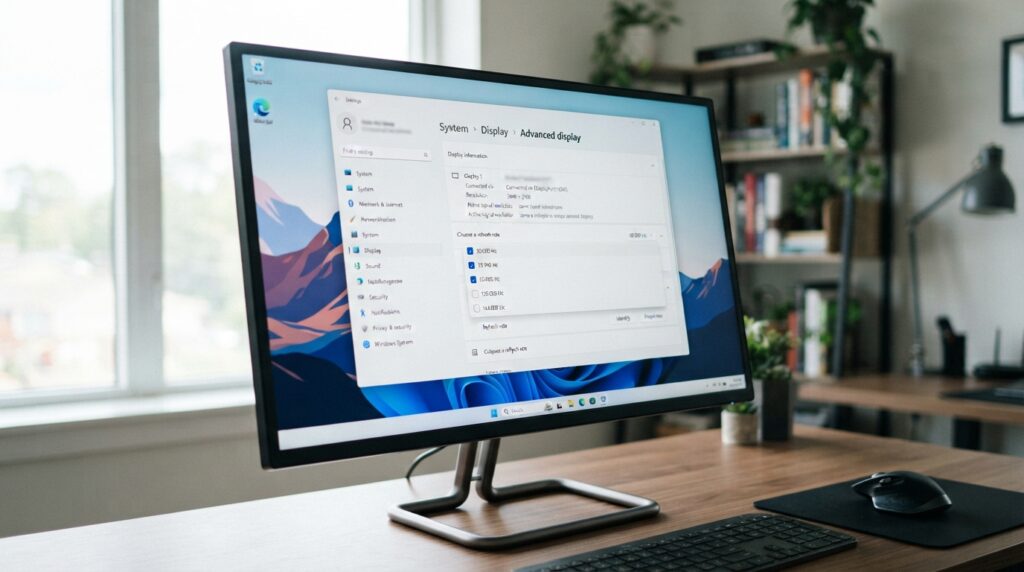
- Open Windows 11 Settings > System > Display > Advanced display and review the listed rates.
Windows may show an asterisk beside rates that do not support the current resolution. Windows 11 refresh-rate settings show which rates are available for the connected display.
The monitor’s on-screen menu can use a different name for the feature. FreeSync needs a compatible monitor, TV, or laptop, a compatible graphics card or APU, and the latest graphics driver.
If the desired rate is marked with an asterisk in Windows, choose a supported resolution and rate combination.
Should Variable Refresh Rate Stay On for Games?
For most compatible gaming setups, leaving VRR on is a sensible starting point. It helps when frame rates fluctuate within the display’s supported range, but it does not guarantee zero input lag.
VRR does not inherently mean extra lag; total input lag depends on the display, game, and system. Classic V-Sync can add latency and can make drops below the monitor’s refresh rate feel worse.
Change one sync setting at a time, then test the same demanding scene to judge motion and control.
- Keep VRR on when frame rates fluctuate within the display’s supported range.
- Use V-Sync or a frame-rate cap when rates regularly exceed the display maximum.
- Turn Windows 11 DRR off if a favorite game appears limited to a lower refresh rate.
AMD recommends V-Sync or a frame-rate cap when game frame rates regularly exceed the display’s maximum refresh rate. This can help manage output that runs past the screen’s range.
Windows 11 DRR can limit the maximum refresh rate of games not designed for variable refresh rate. Microsoft recommends turning DRR off if a favorite game appears to run at a lower refresh rate.
Retest the same demanding scene after changing one sync setting so you can judge motion and control on your own system.
Conclusion
A smoother screen experience comes from matching refresh behavior to the frames your device can deliver. Refresh rate is only one part of motion quality; pixel response and input lag also affect what we see and feel.
Matching frame output to a compatible display can reduce visible timing problems. Check the monitor’s VRR range and confirm that the graphics hardware and connection support it.
Check your display and graphics settings for a compatible VRR option, then compare the result in the games or apps you use most.