Our best all-around high-end pick is the MSI MPG 322UR QD-OLED X24, while the ASUS ROG Swift PG27AQWP-W is built for players who put extreme speed first. The right screen can change how sharp games look and how smooth fast motion feels. A high refresh rate matters only when your PC can send enough frames to use it.
We compare premium monitors for PC and console play, including 4K detail, OLED image quality, ultrawide screens, and fast motion. Dual Mode is a monitor feature that switches between a higher resolution at a lower refresh rate and a lower resolution at a higher refresh rate. Our picks cover different systems and play styles, so you can weigh the gaming experience against the price.
Some players want a large screen for rich single-player worlds. Others need fast response and high frame rates for competitive games. We focus on the tradeoffs that matter at your desk, rather than treating one expensive display as right for everyone.
Key Takeaways
- Our balanced premium choice is a 32-inch 4K OLED with a 240Hz refresh rate.
- The ASUS ROG Swift PG27AQWP-W suits competitive players chasing extreme speed.
- Dual Mode can trade resolution for a higher refresh rate.
- Match screen size and resolution to your desk and graphics card.
- OLED offers deep contrast, while Mini-LED can suit bright rooms and static use.
- Check real frame rates before paying extra for a faster screen.
Match the display’s resolution and refresh rate to the frame rates your system can actually deliver.
Which high-end gaming monitor is the best fit for you?
The MSI MPG 322UR QD-OLED X24 is our most balanced premium pick, while the ASUS ROG Swift PG27AQWP-W is the speed-first choice. For most players, the best gaming monitor balances sharp detail with a refresh rate their PC can use.
Choose 32-inch 4K for screen area and detail, or 27-inch 1440p for higher competitive refresh rates. The table gives a quick view of the main gaming monitors, with their best-fit uses rather than every feature.
| Monitor | Size and resolution | Panel | Refresh rate | Best-fit use |
|---|---|---|---|---|
| MSI MPG 322UR QD-OLED X24 | 32-inch, 4K | QD-OLED | 240Hz | Balanced premium gaming |
| ASUS ROG Strix XG32UCWMG | 32-inch, 4K or Full HD | WOLED | 240Hz or 480Hz | Dual-mode play |
| ASUS ROG Swift PG27AQWP-W | 27-inch, 1440p or 720p | WOLED | 540Hz or 720Hz | Competitive speed |
| MSI MPG 271QR QD-OLED X50 | 27-inch, 1440p | QD-OLED | 500Hz | Fast 1440p gaming |
| Alienware AW3225QF | 32-inch, 4K | QD-OLED | 240Hz | Curved 4K gaming |
The MSI is the balanced 4K choice, while the ASUS dual-mode screen trades resolution for speed when needed. The PG27AQWP-W targets players who value motion above fine detail. Its 720Hz mode uses 720p, so it is a specialist option, not a universal upgrade.
Pick a large 4K screen for detail, or a smaller 1440p model when high competitive refresh rates matter more.
Choose a 32-inch 4K model for detail and screen area, or a 27-inch 1440p model when competitive refresh rates matter more.
What should we compare before choosing a premium display?
Before paying for a premium display, check that its resolution, refresh rate, and physical size fit both your system and your desk. Those three choices shape the cost and the gaming experience more than a long list of extra features.
A monitor’s maximum refresh rate does not mean your PC can render that many frames. Dual Mode switches between a higher resolution at a lower refresh rate and a lower resolution at a higher refresh rate.
Resolution, screen size, and GPU load
Common gaming monitor resolutions include 1080p, 1440p, and 4K. Higher resolution draws more detail, but it also puts more load on the graphics card.
A 24-inch 1080p display can be a sensible pick when performance matters most or your GPU has limited headroom. At that size, the lower resolution can still look clear from a normal desk distance.
At 27 or 32 inches, 1440p and 4K can give games finer detail. Think about how far you sit, too: a large screen needs enough viewing distance to feel comfortable.
Refresh rate and the frame rates you can reach
A 144Hz refresh rate is a meaningful step up from 60Hz, especially in games with quick camera movement. The difference is easier to notice when your PC can deliver a matching frame rate.
Higher refresh rates can make motion look smoother and inputs feel more immediate. Gains become harder to notice beyond 240Hz, and the game must run at very high frame rates to use those modes.
A 4K 240Hz screen only reaches its potential when a PC can produce high frame rates at 4K. If demanding games stay far below that level, resolution or image quality may matter more.
Panel type, room lighting, and everyday use
Panel choice affects contrast, reflections, and how a screen handles dark scenes. OLED can show deep blacks, while a glossy finish may reflect bright windows or lamps.
Use this short checklist before choosing a display:
- Check desk space and your normal viewing distance.
- Match your graphics card to the target resolution.
- Estimate achievable frame rates in your main games.
- Consider room lighting and the screen finish.
- Check the connections needed for your PC or console.
Start with the resolution your graphics card can sustain, then spend more on refresh rate only if your games can use it.
8. Best High-End Gaming Monitors for Detailed 4K Play
For high-end 4K gaming that balances sharp detail with fast motion, we recommend the MSI MPG 322UR QD-OLED X24. It is our best 4K monitor for players seeking a mix of detail, speed, and OLED contrast.
The 32-inch 4K QD-OLED panel runs at 240Hz, giving a large screen both fine detail and quick motion. Its Penta Tandem QD-OLED design uses five layers, which MSI says improves lighting efficiency by up to 30% over prior-generation designs.
In testing, the screen reached 345 nits in SDR mode and earned VESA DisplayHDR True Black 500 certification. Its wide color range covered 99% of DCI-P3 and 95% of Adobe RGB.
Color testing found an average Delta E of 0.62 and a peak of 1.02. Lower Delta E readings mean colors stay closer to their intended values. The listed 2026 price was £850 or $1,100.
DarkArmor Film aims to reduce the purple tint that QD-OLED can show in bright conditions. The coating is also designed to improve scratch resistance, which may help when cleaning or moving the screen.
Text is the main tradeoff for some desktop users. The panel uses a triangular subpixel layout rather than an RGB Stripe layout, and that can create colored fringing around letters.
For games, movies, and other visual content, the large 4K OLED panel offers strong contrast and a high refresh rate. It also gives players more room than a 27-inch screen without giving up sharp resolution.
If you read or edit small text all day, inspect the subpixel rendering in person before making this your only screen.
Is the ASUS ROG Strix XG32UCWMG the right dual-mode 4K screen?
Choose the ASUS ROG Strix XG32UCWMG if one 32-inch screen needs to switch between 4K 240Hz gaming and Full HD 480Hz competition. Its appeal is flexibility, not a fixed answer for every game.
Dual Mode gives players a choice between 4K detail and Full HD speed. The TrueBlack Glossy WOLED panel pairs with a Neo Proximity Sensor, Auto KVM, OLED Care Pro, and ASUS Flicker-Free technology.
The sensor can detect when someone moves near the screen, while Auto KVM helps manage more than one connected device. OLED Care Pro adds panel care tools, and Flicker-Free is designed to reduce visible screen flicker.
This is a 32-inch display, so it does not answer the request for a 27-inch 4K monitor. Players who want a smaller screen should compare other sizes, rather than treating the model name as a match.
Use these three cases to decide if its two modes suit your games:
- Choose 4K 240Hz when you prioritize detail in single-player games.
- Choose Full HD 480Hz when competitive speed matters more than sharpness.
- Choose a single-mode monitor if you rarely change settings between games.
The lower-resolution mode can help a fast competitive game feel smoother, but it also removes much of the fine detail that 4K provides. The change makes most sense when the game benefits from high frame rates and the PC can deliver them.
Use its Full HD mode only when the added speed is more valuable to you than the loss of 4K detail.
What changes with the ASUS ROG Strix XG32UCWG?
The ASUS ROG Strix XG32UCWG trades some refresh-rate headroom for a lower-speed version of the same 32-inch dual-mode idea. Its 4K mode tops out at 165Hz, while its 1080p mode reaches 330Hz.
Choose between 4K 165Hz and 1080p 330Hz based on the frame rates your GPU can reach. Both modes may be more realistic than an extreme setting for some gaming PCs.
| Model and mode | Resolution | Refresh rate | Use case |
|---|---|---|---|
| XG32UCWMG, 4K | 4K | 240Hz | Detailed fast gaming |
| XG32UCWMG, Full HD | Full HD | 480Hz | Competitive speed |
| XG32UCWG, 4K | 4K | 165Hz | Detailed play at a lower rate |
The XG32UCWG also offers 1080p at 330Hz. It shares the glossy TrueBlack WOLED panel technology and core OLED Care features with its faster sibling.
That shared design does not make the screens identical. The XG32UCWMG reaches higher refresh rates in both modes, while the XG32UCWG may fit systems that cannot sustain those rates.
Compare each mode with your graphics card’s output in the games you play. A 165Hz 4K target can be a better match than a higher ceiling that your PC rarely reaches.
Pick the XG32UCWG when 4K 165Hz and 1080p 330Hz already cover your realistic frame-rate targets.
Which 27-inch 1440p OLED is built for 500Hz gaming?
For a 27-inch 1440p OLED that prioritizes speed, the MSI MPG 271QR QD-OLED X50 reaches 500Hz. It is our strongest 1440p pick for players who can feed it very high frame rates.
The 2560×1440 QD-OLED panel combines a 500Hz refresh rate with a 0.03ms GtG response time. It supports AMD FreeSync Premium Pro and works with Nvidia G-Sync.
VESA DisplayHDR True Black 500 certification supports HDR playback. The panel covers 99% of DCI-P3 and 95% of Adobe RGB, giving games and other content a broad color range.
Out of the box, average Delta E measured 1.45. Raising brightness from 70 to 100 brought the average to 0.56, a result that shows how a simple setting change can affect color accuracy.
SDR testing reached 357 nits. The monitor includes DisplayPort 2.1a with UHBR20, two HDMI 2.1 ports, and USB-C with 98W power delivery and DisplayPort alternate mode.
Its three-year warranty includes burn-in coverage. The listed price in the 2026 guide was $799 or £539, placing it among premium high-speed OLED screens.
The subpixel layout is not an RGB Stripe layout, so small text can show fringing. That matters more for dense desktop text than for fast-moving game scenes.
TFTCentral’s MSI MPG 271QR X50 review compares the closely related MPG and MAG models. Check your graphics card’s frame rates before paying for a 500Hz panel.
Check that your graphics card can produce enough frames to make a 500Hz panel worthwhile.
Is a 540Hz or 720Hz OLED worth choosing?
The ASUS ROG Swift PG27AQWP-W is a specialist choice for competitive players who can use 540Hz at 1440p or 720Hz at 720p. Those top speeds suit a narrow group of players and games.
Beyond 240Hz, gains become harder to notice, and very high frame rates demand powerful hardware. The PG27AQWP-W pairs its 27-inch 2560×1440 Tandem WOLED panel with a 720Hz 720p Dual Mode.
The fourth-generation WOLED panel uses a TrueBlack Glossy finish. Its ELMB/BFI feature can run at up to 270Hz, using backlight strobing to improve motion clarity.
The ASUS ROG Swift PG27AQDP offers a less extreme comparison. It is a 27-inch 1440p OLED running at 480Hz, with a 0.03ms response time, 400 nits of SDR brightness, and 1,300 nits of HDR brightness.
Choose the PG27AQDP when 480Hz is already more than enough for your games. The PG27AQWP-W is for players who want the extra 540Hz ceiling, or who can use its lower-resolution 720Hz mode.
A high refresh rate cannot create frames your system does not render. Competitive titles may reach much higher frame rates than demanding story games, so consider your own game library.
The glossy finish can reflect bright windows or room lights. That can distract during dark games, making the panel less suited to a bright room.
Buy into the highest mode only if your games and graphics card can sustain frame rates near it.
Which MSI 500Hz 1440p model fits your setup?
MSI has several 27-inch 1440p OLED options at 500Hz, but their similar model names are not a reason to assume every specification matches. Check the full model name before comparing a gaming monitor’s features.
The MPG 271QR QD-OLED X50, MAG 272QP X50, and MPG 271QR X50 are separate models. The two latter models share a 27-inch 1440p QD-OLED 500Hz panel, semi-glossy coating, USB-C, and a KVM switch.
| Model | Size and resolution | Refresh rate | Confirmed shared features |
|---|---|---|---|
| MSI MPG 271QR QD-OLED X50 | 27-inch, 1440p | 500Hz | QD-OLED panel |
| MSI MAG 272QP X50 | 27-inch, 1440p | 500Hz | Semi-glossy, USB-C, KVM |
| MSI MPG 271QR X50 | 27-inch, 1440p | 500Hz | Semi-glossy, USB-C, KVM |
The MPG 271QR QD-OLED X50 is the detailed recommendation for players who want a 500Hz screen. The MAG 272QP X50 and MPG 271QR X50 share several confirmed traits, but that does not make their full feature sets interchangeable.
A KVM switch lets one keyboard and mouse control more than one connected computer. USB-C can also help reduce desk clutter, though the exact port functions can differ by model.
Compare warranty coverage, inputs, and panel details by exact suffix. A name that differs by a few letters can still point to a distinct monitor.
Verify the exact model suffix before comparing ports, warranty, or panel details.
Do you want an ultrawide OLED for a more immersive view?
Choose the LG UltraGear 45GX950A for a giant high-resolution OLED, or the Alienware AW3423DWF for a smaller 34-inch curved QD-OLED. Their aspect ratios offer more width than a standard 16:9 gaming screen.
The LG shifts between 5120×2160 at up to 165Hz and 2560×1080 at up to 330Hz. The Alienware has a 34-inch 3440×1440 21:9 panel with a 1800R curve and 165Hz refresh rate.
| Model or mode | Size and aspect ratio | Resolution | Refresh rate |
|---|---|---|---|
| LG UltraGear 45GX950A, detail | 45-inch, ultrawide | 5120×2160 | Up to 165Hz |
| LG UltraGear 45GX950A, speed | 45-inch, ultrawide | 2560×1080 | Up to 330Hz |
| Alienware AW3423DWF | 34-inch, 21:9 curved | 3440×1440 | 165Hz |
LG UltraGear 45GX950A for large-format detail
The LG offers a broad field of view and a sharp 5120×2160 mode. Its Dual Mode lowers resolution to 2560×1080 for up to 330Hz, giving players a choice between detail and speed.
A 45-inch screen needs enough desk space and viewing distance. Measure the area before choosing one, especially if your desk also holds speakers or a work laptop.
Alienware AW3423DWF for a 34-inch curved screen
The Alienware is a smaller curved QD-OLED option with a 21:9 aspect ratio. Its 1800R curve wraps the wide image around the viewer without taking up as much space as a 45-inch display.
Ultrawide gaming support can vary by game. Some games use the full width, while others may show side bars or limit the view, so check the titles you play.
Check the games you play for ultrawide support before choosing a screen whose main appeal is its wider aspect ratio.
Should you choose OLED or Mini-LED?
Choose OLED for per-pixel blacks and fast response, and consider Mini-LED when bright-room use or static content is a bigger concern. Daily use matters as much as image quality.
OLED suits many gaming-first users, while Mini-LED is worth considering for sustained static use or a bright room. These are different panel and backlight approaches, not two versions of the same technology.
OLED for per-pixel contrast and fast response
OLED pixels can light up or turn off on their own, which helps create dark blacks and strong contrast. That makes night scenes and bright effects stand out, while quick pixel response helps motion look clear.
WOLED panels are made by LG.Display, while Samsung Display makes QD-OLED panels. Both OLED types can face image retention and burn-in when static content stays on screen for long periods.
Mini-LED for brighter rooms and static desktop use
Mini-LED uses a backlight with local dimming zones. The screen can brighten some areas and darken others, which can help HDR highlights stand out in bright rooms.
Use these cases to guide your choice:
- Pick OLED for cinematic gaming in a dim room.
- Consider Mini-LED for long sessions with static desktop elements.
- Choose based on both gaming and work needs in a mixed-use setup.
Mini-LED avoids OLED’s characteristic burn-in risk, but it does not create the same per-pixel contrast. The best fit depends on how long the screen shows fixed menus, taskbars, or work apps.
Let your longest daily use, not just a short game demo, decide between the two technologies.
How should resolution and refresh rate shape your choice?
A 144Hz display is a strong starting point for smooth gaming, while 240Hz makes most sense when your games can deliver high frame rates. Think in real output, not just the number on the box.
A monitor’s maximum refresh rate is not the same as the frame rate your PC can render. The screen can refresh more often than a game sends new frames.
Match resolution to screen size and graphics hardware
Common choices include 1920×1080, 2560×1440, and 3840×2160. 1440p is a useful middle ground, giving more detail than 1080p without the same graphics-card load as 4K.
4K can look sharp on a large screen, but it asks more of the graphics card. A 24-inch 1080p monitor can be a good choice when performance matters more than fine detail.
Screen size and viewing distance affect how sharp an image appears. A large 4K panel can suit a desk with room to sit farther back, while a smaller screen can make 1080p practical.
Treat refresh rate as a target, not a promise
Moving from 60Hz to 144Hz is a noticeable step for many players. 240Hz is faster still, but the gains become harder to notice beyond that point.
The ideal refresh rate for gaming starts around 144Hz for a strong general balance. Competitive players can consider 240Hz or more when their PC and favorite games can keep up.
Frame rates change with the game, graphics settings, and resolution. A demanding game at 4K may run much slower than a competitive title at 1080p.
Buy for the frame rate you can sustain, not only the maximum number printed on the box.
Which connections matter for PC and console gaming?
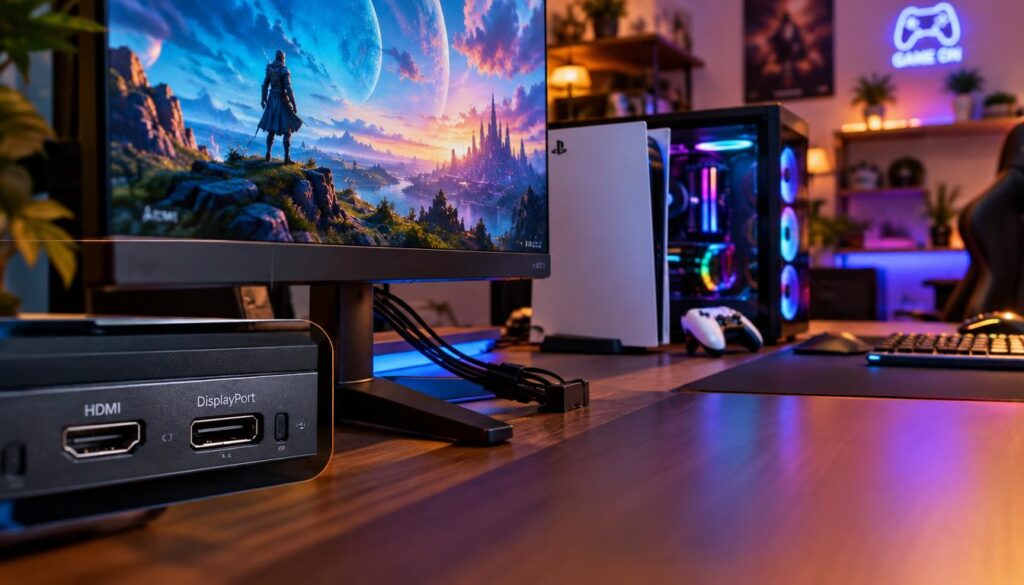
Check the exact input and supported signal before buying a display for a high-refresh PC or a 4K console. The input matters because each connection has limits.
DisplayPort 1.4 can support 4K at 144Hz, while HDMI 2.1 can handle 4K at 120Hz. The monitor must support the mode on the port you plan to use.
DisplayPort for PC refresh-rate headroom
DisplayPort often serves gaming PCs that need high refresh rates. Check the monitor’s stated limit for each DisplayPort input, since resolution and refresh support can vary.
A monitor’s headline refresh rate may rely on one specific input. The graphics card, display, and selected resolution must all support the same signal.
HDMI 2.1 for current console features
HDMI 2.1 can carry a 4K 120Hz signal, which can suit PlayStation 5 and Xbox Series X|S. The Sony INZONE M9 is a 27-inch 4K IPS 144Hz display with two HDMI 2.1 ports and 4K 120Hz console support.
Do not assume every HDMI input supports every mode or console feature. Check the exact port’s refresh limit and whether the monitor supports console VRR, which helps reduce screen tearing.
Confirm the refresh limit for the specific HDMI or DisplayPort input you plan to use.
How do you reduce OLED image-retention risk?
OLED is a strong gaming choice, but long periods of static content make burn-in protection worth checking before purchase. Static desktop tasks can make OLED less suited to some work routines.
Use the screen’s care tools and read the written warranty terms before buying. Common three-year monitor warranties cover burn-in, but coverage differs between brands and products.
Use built-in care features and sensible display habits
Try these four habits to reduce risk and understand your protection:
- Enable the monitor’s OLED care features.
- Allow its panel-maintenance routines to run.
- Vary persistent static content when practical.
- Read the written warranty exclusions before buying.
Taskbars, fixed work windows, and other static desktop elements can stay in one place for hours. Varied gaming content may be a better match for OLED than long work sessions with the same layout.
Check warranty terms before buying
A three-year term does not guarantee that every warranty covers burn-in. Read the exclusions and check whether the coverage applies to the exact model you want.
The MSI MPG 271QR QD-OLED X50 is one example with a three-year warranty that includes burn-in. That specific coverage does not mean every OLED monitor has the same terms.
Read the warranty’s burn-in language and exclusions, rather than relying on the warranty length alone.
When is a non-OLED or Mini-LED screen the better high-end pick?
Choose the Samsung Odyssey Neo G8 for 4K Mini-LED-style HDR, or the Acer Nitro XV273U F5 when extreme refresh rates matter more than 4K detail. Each serves a different priority than an OLED screen.
The Neo G8 is our strongest named Mini-LED-style choice here for 4K HDR, while the Acer is built for speed. The table shows how their main uses differ from a 4K OLED reference.
| Model | Panel and resolution | Refresh-rate modes | Notable use |
|---|---|---|---|
| Acer Nitro XV273U F5 | 27-inch 1440p IPS | 540Hz native, 1,000Hz at 720p | Extreme motion speed |
| Samsung Odyssey Neo G8 | 32-inch 4K VA, Mini-LED | 240Hz | High-brightness HDR |
| MSI MPG 322UR QD-OLED X24 | 32-inch 4K QD-OLED | 240Hz | OLED contrast and detail |
Acer Nitro XV273U F5 for extreme refresh rates
The Acer is a 27-inch 1440p IPS monitor that reaches 540Hz natively or 1,000Hz at 720p. It includes two DisplayPort 1.4 ports and two HDMI 2.1 ports.
Its high refresh rates suit players who value motion speed over 4K detail. The 720p mode lowers resolution sharply, so it fits a specific competitive goal.
Samsung Odyssey Neo G8 for 4K and Mini-LED HDR
The Neo G8 is a 32-inch 4K VA screen with a 240Hz refresh rate. It reached 350 nits in SDR testing and lists 2,000 nits for HDR, with a stated 1,000,000:1 contrast ratio.
Mini-LED local dimming can create blooming around bright objects on dark backgrounds. The effect depends on dimming performance and the scene, so bright subtitles against black can show a glow.
A non-OLED 4K monitor can suit static desktop use or a preference for high HDR brightness. Your games and GPU output still matter when choosing between either display.
Pick the Acer for maximum motion speed, and the Neo G8 for 4K resolution and high-brightness HDR.
How can you narrow the shortlist to one monitor?
The fastest way to choose is to rank your needs for resolution, refresh rate, panel type, and desk space before comparing prices. Start with your actual setup, not the most impressive specification.
Choose a monitor whose main feature matches your games and the frame rates your PC can sustain. Use this five-point checklist to cut down the options.
- Pick your preferred resolution and screen size.
- Estimate realistic GPU frame rates in your games.
- Check game support for ultrawide aspect ratios.
- Consider how much static desktop content you use each day.
- Set the maximum price you feel comfortable spending.
Price depends on resolution, panel type, refresh rate, and extra connectivity. Higher-end OLED and Mini-LED screens can cost more, while simpler options may suit a tighter budget.
The Alienware AW2726DM offers a lower-cost QHD QD-OLED option with a 240Hz refresh rate and 0.03ms response time. It supports FreeSync and G-Sync, and its listed price was $350.
That listed price is an example, not a promise for every retailer or current offer. Compare the exact model and its features against the amount you planned to spend.
A fast screen may still be poor value if your system cannot reach its headline mode. Keep enough of your budget for the PC hardware that drives the image.
Choose a balanced display when your system cannot use a monitor’s headline mode, and keep the price difference in your budget.
If your system cannot use a monitor’s headline mode, choose the more balanced display and keep the difference in your budget.
Conclusion
For most high-end players, the MSI MPG 322UR QD-OLED X24 is the balanced pick, while competitive specialists should consider the ASUS ROG Swift PG27AQWP-W. Choose for your own games, since a top refresh rate helps only when your system can drive it.
Check your graphics card’s expected frame rates at your preferred resolution before ordering. That estimate can show whether a fast 1440p screen or detailed 4K model makes more sense.
Your desk space and usual daily tasks matter, too. A screen should fit the room and the way you use your PC, not just a short game test.
Check your system’s frame-rate performance at your chosen resolution, then select the monitor whose strongest feature you will use every day.